
No products in the cart.
API Documentation
Reference for available endpoints, request formats, parameters, and example responses for integrating the API into your applications.
This documentation is intended for developers who want to integrate CapSkip directly into their own scripts, applications, or automation systems. Users of third party software should follow the Tutorials section for setup instructions.
CapSkip emulates the APIs of widely used CAPTCHA solving services, allowing it to connect to compatible third party software without requiring any modifications. Integration typically only requires running CapSkip.
The documentation explains how to submit requests and retrieve results. CapSkip supports multiple API families, including the 2Captcha style API (in.php / res.php), the JSON createTask / getTaskResult API used by AntiCaptcha, CapMonster, and CapSolver, and the DeathByCaptcha REST API. Services within the same family share the same endpoints, request and response format. Only the base URL (host and port) differs for each service.
| API family | Services |
|---|---|
| 2captcha-style | 2captcha.com, rucaptcha.com, solvecaptcha.com, captchas.io |
| JSON (createTask / getTaskResult) | anti-captcha.com, capmonster.cloud, capsolver.com |
| DeathByCaptcha | deathbycaptcha.com |
 Image CAPTCHA

A normal CAPTCHA is an image containing distorted but human-readable text. To solve it, the user must type the text shown in the image.
To solve a normal CAPTCHA, submit the image via an HTTP POST request to the API endpoint. Send the request directly to your CapSkip instance using the configured local address and port, for example: http://127.0.0.1:PORT/in.php
CapSkip accepts images in multipart/form-data or Base64-encoded format.
Multipart sample form
<form method="post" action="http://127.0.0.1:PORT/in.php" enctype="multipart/form-data">
<input type="hidden" name="method" value="post">
Your key:
<input type="text" name="key" value="YOUR_APIKEY">
The CAPTCHA file:
<input type="file" name="file">
<input type="submit" value="Upload and get the ID">
</form>
YOUR_APIKEY represents your API key if API key validation is enabled in CapSkip. If API key validation is disabled, any string value will be accepted.
Base64 sample form
<form method="post" action="http://127.0.0.1:PORT/in.php">
<input type="hidden" name="method" value="base64">
Your key:
<input type="text" name="key" value="YOUR_APIKEY">
The CAPTCHA file body in base64 format:
<textarea name="body">BASE64_FILE</textarea>
<input type="submit" value="Upload and get the ID">
</form>
YOUR_APIKEY represents your API key if API key validation is enabled in CapSkip. If API key validation is disabled, any string value will be accepted.
BASE64_FILE is the Base64-encoded image data.
List of POST Request Parameters
| POST parameter | Type | Required | Description |
|---|---|---|---|
| key | String | Yes | Your CapSkip API key. |
| method | String | Yes |
post – submit the image using multipart/form-data base64 – submit the image as a Base64-encoded string |
| file | File | Yes* |
CAPTCHA image file. * Required when method=post. |
| body | String | Yes* |
Base64-encoded CAPTCHA image data. * Required when method=base64. |
| json | Integer Default: 0 | No |
0 – response is returned as plain text 1 – response is returned in JSON format |
Submit CAPTCHA (multipart file upload):
curl -X POST -F "key=YOUR_API_KEY" -F "method=post" -F "[email protected]" http://127.0.0.1:8080/in.php
Submit CAPTCHA (base64 encoded):
curl -X POST -d "key=YOUR_API_KEY&method=base64&body=BASE64_IMAGE_DATA" http://127.0.0.1:8080/in.php
After submitting the request, if everything is correct, CapSkip will return the CAPTCHA ID as plain text: OK|12345
If the json=1 parameter is used, the response will be returned in JSON format:
{"status":1,"request":"12345"}
Wait 1 second, then send an HTTP GET request to the result endpoint (/res.php) with the returned CAPTCHA ID.
If the CAPTCHA has been solved, CapSkip will return the result as plain text: OK|TEXT
If json=1 was specified, the response will be: {"status":1,"request":"TEXT"}
If the CAPTCHA is not yet solved, CapSkip will return: CAPCHA_NOT_READY
In this case, wait 1 second and repeat the request until a final result is received.
List of GET request parameters
| GET parameter | Type | Required | Description |
|---|---|---|---|
| key | String | Yes | Your CapSkip API key. |
| action | String | Yes | get – retrieve the answer for the submitted CAPTCHA. |
| id | Integer | Yes |
The CAPTCHA ID returned by in.php. |
| json | Integer Default: 0 | No |
0 – response is returned as plain text 1 – response is returned in JSON format |
curl "http://127.0.0.1:8080/res.php?key=YOUR_API_KEY&action=get&id=CAPTCHA_ID"
 reCAPTCHA V2
 reCAPTCHA V2
reCAPTCHA v2, also known as the “I’m not a robot” reCAPTCHA, is a widely used CAPTCHA type that appears as follows: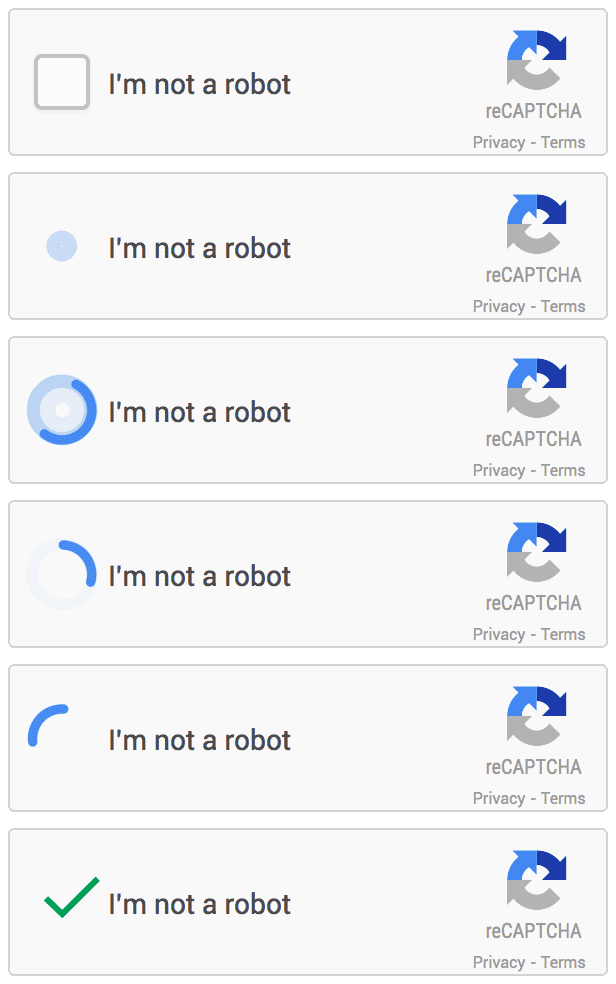
To solve reCAPTCHA v2, send the googlekey and pageurl parameters along with method=userrecaptcha and your CapSkip API key.
You can obtain the googlekey using one of the following methods:
Right-click on the reCAPTCHA widget and select Inspect. Locate a URL that begins with:
www.google.com/recaptcha/api2/anchor
Copy the value of the k parameter from that URL. Alternatively, find the data-sitekey attribute in the page source and copy its value.
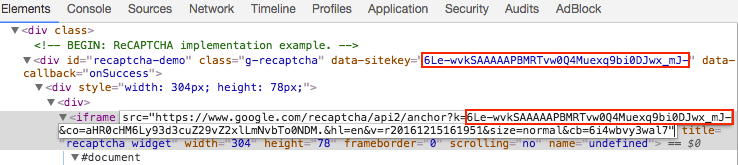
Once you have the site key, submit an HTTP GET or POST request to http://127.0.0.1:PORT/in.php
List of POST Request Parameters
| Parameter | Type | Required | Description |
|---|---|---|---|
| key | String | Yes | Your CapSkip API key. |
| method | String | Yes | userrecaptcha – specifies a reCAPTCHA v2 request. |
| googlekey | String | Yes | The value of the k or data-sitekey parameter found on the target page. |
| pageurl | String | Yes | The full URL of the page where the reCAPTCHA is located. |
| enterprise | Integer Default: 0 | No |
1 – indicates reCAPTCHA Enterprise v2. 0 – standard reCAPTCHA v2. |
| invisible | Integer Default: 0 | No |
1 – indicates Invisible reCAPTCHA. 0 – standard checkbox reCAPTCHA. |
| data-s | String | No | Value of the data-s parameter found on the page. Applicable to Google Search and certain Google services. |
| json | Integer Default: 0 | No |
0 – response is returned as plain text. 1 – response is returned in JSON format. |
Submit reCAPTCHA v2 (Standard):
curl -X POST -d "key=YOUR_API_KEY&method=userrecaptcha&googlekey=6Le-wvkSAAAAAPBMRTvw0Q4Muexq9bi0DJwx_mJ-&pageurl=https://example.com" http://127.0.0.1:8080/in.php
Submit reCAPTCHA v2 (Invisible):
curl -X POST -d "key=YOUR_API_KEY&method=userrecaptcha&googlekey=6Le-wvkSAAAAAPBMRTvw0Q4Muexq9bi0DJwx_mJ-&pageurl=https://example.com&invisible=1" http://127.0.0.1:8080/in.php
Submit Enterprise reCAPTCHA v2:
curl -X POST -d "key=YOUR_API_KEY&method=userrecaptcha&googlekey=6Le-wvkSAAAAAPBMRTvw0Q4Muexq9bi0DJwx_mJ-&pageurl=https://example.com&enterprise=1" http://127.0.0.1:8080/in.php
Submit Enterprise reCAPTCHA v2 (Invisible):
curl -X POST -d "key=YOUR_API_KEY&method=userrecaptcha&googlekey=6Le-wvkSAAAAAPBMRTvw0Q4Muexq9bi0DJwx_mJ-&pageurl=https://example.com&enterprise=1&invisible=1" http://127.0.0.1:8080/in.php
If the request is successful, CapSkip will return the CAPTCHA ID as plain text: OK|12345
If the json=1 parameter was used, the response will be returned in JSON format:
{"status":1,"request":"12345"}
If the request fails, CapSkip will return an error code.
Wait 15 to 20 seconds, then send an HTTP GET request to the result endpoint to retrieve the solution: http://127.0.0.1:PORT/res.php
List of GET request parameters
| GET parameter | Type | Required | Description |
|---|---|---|---|
| key | String | Yes | Your CapSkip API key. |
| action | String | Yes | get – retrieve the answer for the submitted CAPTCHA. |
| id | Integer | Yes |
The CAPTCHA ID returned by in.php. |
| json | Integer Default: 0 | No |
0 – response is returned as plain text 1 – response is returned in JSON format |
curl "http://127.0.0.1:8080/res.php?key=YOUR_API_KEY&action=get&id=CAPTCHA_ID"
If the CAPTCHA has been solved, CapSkip will respond in plain text or JSON and return the answer token. The token will look similar to the following:
03AHJ_Vuve5Asa4koK3KSMyUkCq0vUFCR5Im4CwB7PzO3dCxIo11i53epEraq-uBO5mVm2XRikL8iKOWr0aG50sCuej9bXx5qcviUGSm4iK4NC_Q88flavWhaTXSh0VxoihBwBjXxwXuJZ-WGN5Sy4dtUl2wbpMqAj8Zwup1vyCaQJWFvRjYGWJ_TQBKTXNB5CCOgncqLetmJ6B6Cos7qoQyaB8ZzBOTGf5KSP6e-K9niYs772f53Oof6aJeSUDNjiKG9gN3FTrdwKwdnAwEYX-F37sI_vLB1Zs8NQo0PObHYy0b0sf7WSLkzzcIgW9GR0FwcCCm1P8lB-50GQHPEBJUHNnhJyDzwRoRAkVzrf7UkV8wKCdTwrrWqiYDgbrzURfHc2ESsp020MicJTasSiXmNRgryt-gf50q5BMkiRH7osm4DoUgsjc_XyQiEmQmxl5sqZP7aKsaE-EM00x59XsPzD3m3YI6SRCFRUevSyumBd7KmXE8VuzIO9lgnnbka4-eZynZa6vbB9cO3QjLH0xSG3-egcplD1uLGh79wC34RF49Ui3eHwua4S9XHpH6YBe7gXzz6_mv-o-fxrOuphwfrtwvvi2FGfpTexWvxhqWICMFTTjFBCEGEgj7_IFWEKirXW2RTZCVF0Gid7EtIsoEeZkPbrcUISGmgtiJkJ_KojuKwImF0G0CsTlxYTOU2sPsd5o1JDt65wGniQR2IZufnPbbK76Yh_KI2DY4cUxMfcb2fAXcFMc9dcpHg6f9wBXhUtFYTu6pi5LhhGuhpkiGcv6vWYNxMrpWJW_pV7q8mPilwkAP-zw5MJxkgijl2wDMpM-UUQ_k37FVtf-ndbQAIPG7S469doZMmb5IZYgvcB4ojqCW3Vz6Q
If the CAPTCHA is not yet solved, CapSkip will return CAPCHA_NOT_READY. In this case, wait 5 seconds and repeat the request.
Locate the element with the ID g-recaptcha-response and make it visible by removing the display: none style.

Please note: In some cases, the page content is generated dynamically, and the
g-recaptcha-responseelement may not appear in the static HTML source. In such situations, inspect the page structure using your browser’s developer tools to locate the dynamically generated element.
As an alternative, you can use JavaScript to set the value of the g-recaptcha-response field directly:
document.getElementById("g-recaptcha-response").innerHTML="TOKEN";An input field will appear on the page. Paste the answer token into that field and submit the form.
reCAPTCHA V2 Callback
In some cases, there is no submit button and a callback function is used instead. The callback function is executed automatically when reCAPTCHA is solved.
The list of POST and GET request parameters is available here: reCAPTCHA V2 POST and GET request parameters
The callback function is typically defined in the data-callback attribute of the reCAPTCHA widget, for example:
data-callback="myCallbackFunction"
In other cases, the callback function is defined as the callback parameter of the grecaptcha.render() function, for example:
grecaptcha.render('example', {
'sitekey' : 'someSitekey',
'callback' : myCallbackFunction,
'theme' : 'dark'
});
Another way to locate the callback function is to open the browser’s JavaScript console and inspect the reCAPTCHA configuration object:
___grecaptcha_cfg.clients[0].aa.l.callback
Note that the aa.l property may vary, and there may be multiple reCAPTCHA clients on the page. In such cases, you should also inspect clients[1], clients[2], and other entries to locate the correct configuration object.
Alternatively, you can use the following script to automatically extract reCAPTCHA parameters:
function findRecaptchaClients() {
if (typeof (___grecaptcha_cfg) !== 'undefined') {
return Object.entries(___grecaptcha_cfg.clients).map(([cid, client]) => {
const data = { id: cid, version: cid >= 10000 ? 'V3' : 'V2' };
const objects = Object.entries(client).filter(([_, value]) => value && typeof value === 'object');objects.forEach(([toplevelKey, toplevel]) => {
const found = Object.entries(toplevel).find(([_, value]) => (
value && typeof value === 'object' && 'sitekey' in value && 'size' in value
));
if (typeof toplevel === 'object' && toplevel instanceof HTMLElement && toplevel['tagName'] === 'DIV'){
data.pageurl = toplevel.baseURI;
}
if (found) {
const [sublevelKey, sublevel] = found;data.sitekey = sublevel.sitekey;
const callbackKey = data.version === 'V2' ? 'callback' : 'promise-callback';
const callback = sublevel[callbackKey];
if (!callback) {
data.callback = null;
data.function = null;
} else {
data.function = callback;
const keys = [cid, toplevelKey, sublevelKey, callbackKey].map((key) => `['${key}']`).join('');
data.callback = `___grecaptcha_cfg.clients${keys}`;
}
}
});
return data;
});
}
return [];
}
Finally, call the callback function:
myCallbackFunction();
Or alternatively:
___grecaptcha_cfg.clients[0].aa.l.callback();
In some cases, the callback function requires an argument. In most situations, you should pass the solved token as that argument. For example:
myCallbackFunction('TOKEN'); reCAPTCHA V2 Invisible
reCAPTCHA v2 also has an Invisible mode. You can see an example here:
https://www.google.com/recaptcha/api2/demo?invisible=true
Invisible reCAPTCHA does not display the “I’m not a robot” checkbox. Instead, it is typically attached to a button or triggered automatically on page load or user interaction, such as clicking a button or submitting a form.
Internally, the Invisible reCAPTCHA widget is rendered inside a hidden <div> element positioned outside the visible viewport, making it invisible to the user.
Depending on the user’s cookies and risk score, reCAPTCHA may pass automatically without displaying a challenge. Otherwise, a standard image challenge will appear.
In most cases, once the challenge is completed, a callback function is executed. Refer to the callback section above for more details.
The list of POST and GET request parameters is available here: reCAPTCHA V2 POST and GET request parameters
How to Determine if reCAPTCHA is Invisible?
You can identify Invisible reCAPTCHA using one of the following indicators:
The “I’m not a robot” checkbox is not visible, but a challenge appears after user interaction.
The reCAPTCHA iframe URL contains the parameter
size=invisible.The reCAPTCHA configuration object includes a
sizeproperty set toinvisible, for example:___grecaptcha_cfg.clients[0].aa.l.size === "invisible"
When solving Invisible reCAPTCHA via API, include the parameter: invisible=1
How to Handle Invisible reCAPTCHA in the Browser?
Method 1: Using JavaScript
Set the value of the g-recaptcha-response field to the token returned by CapSkip:
document.getElementById("g-recaptcha-response").innerHTML="TOKEN";After setting the token, execute the action that normally occurs after successful verification.
In most cases, this means submitting a form. You need to identify the correct form by its id, name, or another attribute, and then trigger the submission. Here are a few examples:
document.getElementById("recaptcha-demo-form").submit(); //by id "recaptcha-demo-form"
document.getElementsByName("myFormName")[0].submit(); //by element name "myFormName"
document.getElementsByClassName("example").submit(); //by class name "example"
In some cases, a callback function is executed automatically when reCAPTCHA is solved.
The callback function is typically defined in the data-callback attribute of the reCAPTCHA widget, for example:
data-callback="myCallbackFunction"
In other cases, the callback function is defined as the callback parameter of the grecaptcha.render() function, for example:
grecaptcha.render('example', {
'sitekey' : 'someSitekey',
'callback' : myCallbackFunction,
'theme' : 'dark'
});
All you need to do is call that function:
myCallbackFunction();
Method 2: Modifying the HTML
Remove the <div> element that contains the reCAPTCHA widget from the page body.
<div style="visibility: hidden; position: absolute; width:100%; top: -10000px; left: 0px; right: 0px; transition: visibility 0s linear 0.3s, opacity 0.3s linear; opacity: 0;">
<div style="width: 100%; height: 100%; position: fixed; top: 0px; left: 0px; z-index: 2000000000; background-color: #fff; opacity: 0.5;  filter: alpha(opacity=50)"></div>
<div style="margin: 0 auto; top: 0px; left: 0px; right: 0px; position: absolute; border: 1px solid #ccc; z-index: 2000000000; background-color: #fff; overflow: hidden;">
<iframe src="https://www.google.com/recaptcha/api2/bframe?hl=en&v=r20170213115309&k=6LfP0CITAAAAAHq9FOgCo7v_fb0-pmmH9VW3ziFs#zglq3yifgkmj"
title="recaptcha challenge"
style="width: 100%; height: 100%;"
scrolling="no"
name="zglq3yifgkmj"
frameborder="0"></iframe>
</div>
</div>
Remove the entire reCAPTCHA block from the page.
<div class="">
<!-- BEGIN: ReCAPTCHA implementation example. -->
<div
id="recaptcha-demo"
class="g-recaptcha"
data-sitekey="6LfP0CITAAAAAHq9FOgCo7v_fb0-pmmH9VW3ziFs"
data-callback="onSuccess"
data-bind="recaptcha-demo-submit"
>
<div
class="grecaptcha-badge"
style="width: 256px; height: 60px; transition: right 0.3s ease 0s; position: fixed; bottom: 14px; right: -186px; box-shadow: 0px 0px 5px gray;"
>
<div class="grecaptcha-logo">
<iframe
src="https://www.google.com/recaptcha/api2/anchor?k=6LfP0CITAAAAAHq9FOgCo7v_fb0-pmmH9VW3ziFs&co=aHR0cHM6Ly93d3cuZ29vZ2xlLmNvbTo0NDM.&hl=en&v=r20170213115309&size=invisible&cb=uror1hlow5a"
title="recaptcha widget"
scrolling="no"
name="undefined"
width="256"
height="60"
frameborder="0"
></iframe>
</div>
<div class="grecaptcha-error"></div>
<textarea
id="g-recaptcha-response"
name="g-recaptcha-response"
class="g-recaptcha-response"
style="width: 250px; height: 40px; border: 1px solid #c1c1c1; margin: 10px 25px; padding: 0px; resize: none;  display: none; "
></textarea>
</div>
</div>
<script>
var onSuccess = function (response) {
var errorDivs = document.getElementsByClassName('recaptcha-error');
if (errorDivs.length) {
errorDivs[0].className = '';
}
var errorMsgs = document.getElementsByClassName('recaptcha-error-message');
if (errorMsgs.length) {
errorMsgs[0].parentNode.removeChild(errorMsgs[0]);
}
document.getElementById('recaptcha-demo-form').submit();
};
</script>
<!-- Optional noscript fallback. --><!-- END: ReCAPTCHA implementation example. -->
</div>
Insert the following code in place of the removed block:
<input type="submit" /> <textarea name="g-recaptcha-response">%g-recaptcha-response%</textarea>
%g-recaptcha-response% represents the answer token received from CapSkip.
After replacing the block, a “Submit query” button will appear. Click the button to submit the form along with the g-recaptcha-response value and all other required form data to the website.
reCAPTCHA V3
reCAPTCHA v3 is a modern CAPTCHA mechanism developed by Google. It does not present a visible challenge and requires no user interaction. Instead, it assigns a score based on the likelihood that the interaction is human.
Technically, reCAPTCHA v3 is similar to reCAPTCHA v2. The website receives a token from the reCAPTCHA API, which is then sent in a POST request to the target server and verified through the reCAPTCHA API.
The key difference is that reCAPTCHA v3 does not display a visible challenge. Instead, it returns a rating that estimates whether the user is human or a bot. This rating is called a score and ranges from 0.1 to 0.9. The score is sent to the website, which then decides how to handle the request based on that value.
There is also an additional parameter called action, which allows the website to distinguish between different user interactions. After verifying the token, the reCAPTCHA API returns the action name associated with the request.
How to Solve reCAPTCHA v3 Using CapSkip?
First, confirm that the target website is using reCAPTCHA v3.
Indicators of reCAPTCHA v3 include:
No visible CAPTCHA or image challenges
The
api.jsscript is loaded with arender=SITEKEYparameter, for example:https://www.google.com/recaptcha/api.js?render=SITEKEYThe
___grecaptcha_cfg.clientsarray contains an entry with a high numeric index, such asclients[100000]
To solve reCAPTCHA v3, identify the following parameters:
- sitekey
This can be found in therenderparameter of theapi.jsscript URL. It may also appear in an iframe URL, within JavaScript code that callsgrecaptcha.execute(), or inside the___grecaptcha_cfgconfiguration object. - action
Locate this by inspecting JavaScript code for calls togrecaptcha.execute(), for example:grecaptcha.execute('SITEKEY', {action: 'do_something'})In some cases, finding the action requires reviewing multiple JavaScript files loaded by the page. If you cannot determine the action value, you may use the default value"verify". - pageurl
The full URL of the page where reCAPTCHA v3 is implemented.
Understanding the Score
The acceptable score threshold varies by website and can only be determined through testing. Scores range from:
0.1 → likely bot
0.9 → likely human
Most websites use thresholds between 0.2 and 0.5, since even legitimate users may receive lower scores.
You can specify the required threshold using the min_score parameter in your request.
List of POST Request Parameters
| Parameter | Type | Required | Description |
|---|---|---|---|
| key | String | Yes | Your CapSkip API key. |
| method | String | Yes | userrecaptcha – specifies a reCAPTCHA request. |
| version | String | Yes | v3 – indicates that the request is for reCAPTCHA v3. |
| googlekey | String | Yes | The value of the data-sitekey parameter found on the target page. |
| pageurl | String | Yes | The full URL of the page where the reCAPTCHA is located. |
| enterprise | Integer Default: 0 | No |
1 – indicates reCAPTCHA Enterprise v3. 0 – standard reCAPTCHA v3. |
| action | String Default: verify | No | The value of the action parameter defined on the page. |
| min_score | Float Default: 0.4 | No | Minimum acceptable score for the token. Higher scores indicate a greater likelihood of human interaction. |
| json | Integer Default: 0 | No |
0 – response is returned as plain text. 1 – response is returned in JSON format. |
Submit reCAPTCHA v3:
curl -X POST -d "key=YOUR_API_KEY&method=userrecaptcha&version=v3&action=submit&min_score=0.7&googlekey=6Le-wvkSAAAAAPBMRTvw0Q4Muexq9bi0DJwx_mJ-&pageurl=https://example.com" http://127.0.0.1:8080/in.php
Submit Enterprise reCAPTCHA v3:
curl -X POST -d "key=YOUR_API_KEY&method=userrecaptcha&version=v3&action=submit&min_score=0.7&googlekey=6Le-wvkSAAAAAPBMRTvw0Q4Muexq9bi0DJwx_mJ-&pageurl=https://example.com&enterprise=1" http://127.0.0.1:8080/in.php
If the request is successful, CapSkip will return the CAPTCHA ID as plain text: OK|12345
If the json=1 parameter is specified, the response will be returned in JSON format:
{"status":1,"request":"12345"}
If an error occurs, CapSkip will return an error code.
Wait 10 to 15 seconds, then send an HTTP GET request to the result endpoint: http://127.0.0.1:PORT/res.php
Provide the returned CAPTCHA ID in your request. The full list of available parameters is shown in the table below.
If the CAPTCHA has been solved successfully, CapSkip will return the result in plain text or JSON format. The returned value is a verification token similar to the following:
03AHJ_Vuve5Asa4koK3KSMyUkCq0vUFCR5Im4CwB7PzO3dCxIo11i53epEraq-uBO5mVm2XRikL8iKOWr0aG50sCuej9bXx5qcviUGSm4iK4NC_Q88flavWhaTXSh0VxoihBwBjXxwXuJZ-WGN5Sy4dtUl2wbpMqAj8Zwup1vyCaQJWFvRjYGWJ_TQBKTXNB5CCOgncqLetmJ6B6Cos7qoQyaB8ZzBOTGf5KSP6e-K9niYs772f53Oof6aJeSUDNjiKG9gN3FTrdwKwdnAwEYX-F37sI_vLB1Zs8NQo0PObHYy0b0sf7WSLkzzcIgW9GR0FwcCCm1P8lB--gf50q5BMkiRH7osm4DoUgsjc_XyQiEmQmxl5sqZP7aKsaE-EM00x59XsPzD3m3YI6SRCFRUevSyumBd7KmXE8VuzIO9lgnnbka4-eZynZa6vbB9cO3QjLH0xSG3--o-fxrOuphwfrtwvvi2FGfpTexWvxhqWICMFTTjFBCEGEgj7_IFWEKirXW2RTZCVF0Gid7EtIsoEeZkPbrcUISGmgtiJkJ_KojuKwImF0G0CsTlxYTOU2sPsd5o1JDt65wGniQR2IZufnPbbK76Yh_KI2DY4cUxMfcb2fAXcFMc9dcpHg6f9wBXhUtFYTu6pi5LhhGuhpkiGcv6vWYNxMrpWJW_pV7q8mPilwkAP-zw5MJxkgijl2wDMpM-UUQ_k37FVtf-ndbQAIPG7S469doZMmb5IZYgvcB4ojqCW3Vz6Q
If the CAPTCHA is not yet solved, CapSkip will return CAPCHA_NOT_READY. Wait 5 seconds and repeat the request.
List of GET request parameters
| GET parameter | Type | Required | Description |
|---|---|---|---|
| key | String | Yes | Your CapSkip API key. |
| action | String | Yes | get – retrieve the answer for the submitted CAPTCHA. |
| id | Integer | Yes |
The CAPTCHA ID returned by in.php. |
| json | Integer Default: 0 | No |
0 – response is returned as plain text 1 – response is returned in JSON format |
curl "http://127.0.0.1:8080/res.php?key=YOUR_API_KEY&action=get&id=CAPTCHA_ID"
After receiving the token from CapSkip, you must submit it correctly to the target website. The best way to understand how this works is to observe the requests sent when completing the verification as a normal user. Most browsers provide developer tools with a Network tab that allows you to inspect outgoing requests.
In most cases, the token is sent via a POST request. The parameter name may be g-recaptcha-response, similar to reCAPTCHA v2, or something like g-recaptcha-response-100000. In some implementations, a different parameter name may be used.
You should inspect the network requests to determine how the token is transmitted and then structure your request accordingly.
reCAPTCHA Enterprise
reCAPTCHA Enterprise is the advanced version of Google’s reCAPTCHA system. It can operate in both v2 and v3 modes and provides website administrators with additional control, including the ability to assess and report whether an interaction was human or automated.
How to Solve reCAPTCHA Enterprise?
The first step is to determine whether the website is using the Enterprise version of reCAPTCHA.
Key indicators of reCAPTCHA Enterprise include:
The page loads
enterprise.jsinstead ofapi.js, for example:<script src="https://recaptcha.net/recaptcha/enterprise.js" async defer></script>
The website’s JavaScript code calls
grecaptcha.enterprise.METHODinstead ofgrecaptcha.METHOD
Next, determine which implementation is being used: v2, Invisible v2, or v3. This can usually be identified by analyzing how the widget is rendered and how it behaves on the page.
Follow the flowchart below to determine the correct implementation. It applies in the vast majority of cases.
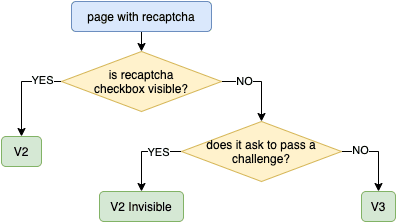
Identify the CAPTCHA parameters in the same way as described for reCAPTCHA v2 or v3.
For v2 Enterprise implementations, there may be additional optional data. In most cases, this is a custom string defined in the s or data-s parameter. If present, include this value in your request using the data-s parameter.
The list of POST and GET request parameters is available here: reCAPTCHA V2 POST and GET request parameters
For v3 Enterprise implementations, you may also need the action value. To find it, inspect the website’s JavaScript code and locate the grecaptcha.enterprise.execute() call. The action parameter is typically passed within this function. Keep in mind that action is optional and may be undefined in some cases.
The list of POST and GET request parameters is available here: reCAPTCHA V3 POST and GET request parameters
When submitting your request to the /in.php endpoint, include the additional parameter: enterprise=1
After that, interact with CapSkip API in the same way as when solving reCAPTCHA v2 or v3. Once the token is returned, submit it to the target website according to its implementation.
 Cloudflare Turnstile
 Cloudflare Turnstile
Cloudflare Turnstile is a modern CAPTCHA alternative developed by Cloudflare. It verifies whether a visitor is human without relying on traditional visual challenges. Turnstile can appear as a standalone widget or as part of a challenge page, and it operates with minimal or no user interaction.
There are two common Turnstile implementations:
1. Standalone Turnstile Widget
A standalone Turnstile widget is embedded directly on a website page, typically protecting a form from automated submissions. In this case:
Extract the
sitekeyfrom the page.Send it to the CapSkip API along with the full
pageurl.After receiving the token, insert it into the
cf-turnstile-responsefield.In some implementations, the token may also need to be placed in the
g-recaptcha-responsefield.If a callback is defined in the
turnstile.render()configuration, execute it with the returned token.
Then submit the form as usual.
2. Turnstile on a Cloudflare Challenge Page
This occurs when the website is proxied through Cloudflare and presents a Turnstile challenge page before granting access. In this case, you must extract the following parameters:
cDatachlPageDataaction
These values must be included in your API request. Additionally, you must use the User-Agent value returned by the CapSkip API when submitting the token.
How to Extract the Required Parameters?
To extract the required parameters, you can override the turnstile.render method and intercept the arguments passed when it is called. For example, inject the following JavaScript code into the page. The script must be executed before the Turnstile widget is loaded in order to capture the parameters successfully.
const i = setInterval(()=>{
if (window.turnstile) {
clearInterval(i)
window.turnstile.render = (a,b) => {
let p = {
method: "turnstile",
key: "YOUR_API_KEY",
sitekey: b.sitekey,
pageurl: window.location.href,
data: b.cData,
pagedata: b.chlPageData,
action: b.action,
userAgent: navigator.userAgent,
json: 1
}
console.log(JSON.stringify(p))
window.tsCallback = b.callback
return 'foo'
}
}
},50)
List of POST Request Parameters
| Parameter | Type | Required | Description |
|---|---|---|---|
| key | String | Yes | Your CapSkip API key. |
| method | String | Yes | turnstile – specifies a Cloudflare Turnstile request. |
| sitekey | String | Yes | The value of the data-sitekey parameter found on the target page. |
| pageurl | String | Yes | The full URL of the page where the Turnstile challenge is located. |
| action | String | No |
Optional action value defined in the data-action attribute or passed to turnstile.render(). |
| data | String | No |
The value of cData passed to turnstile.render() or defined in the data-cdata attribute. |
| pagedata | String | No |
The value of chlPageData passed to turnstile.render(). |
| json | Integer Default: 0 | No |
0 – response is returned as plain text. 1 – response is returned in JSON format. |
Submit Turnstile (standalone):
curl -X POST -d "key=YOUR_API_KEY&method=turnstile&sitekey=0x4AAAAAAABUYP0XeMJF0xoy&pageurl=https://example.com" http://127.0.0.1:8080/in.php
Submit Turnstile (challenge – optional action, data, pagedata):
curl -X POST -d "key=YOUR_API_KEY&method=turnstile&sitekey=0x4AAAAAAABUYP0XeMJF0xoy&pageurl=https://example.com&action=managed&data=...&pagedata=..." http://127.0.0.1:8080/in.php
If the request is successful, CapSkip will return the CAPTCHA ID as plain text: OK|12345
If the json=1 parameter is specified, the response will be returned in JSON format:
{"status":1,"request":"12345"}
If an error occurs, CapSkip will return an error code.
Use the returned ID to retrieve the result from the /res.php endpoint of the API.
List of GET request parameters
| GET parameter | Type | Required | Description |
|---|---|---|---|
| key | String | Yes | Your CapSkip API key. |
| action | String | Yes | get – retrieve the answer for the submitted CAPTCHA. |
| id | Integer | Yes |
The CAPTCHA ID returned by in.php. |
| json | Integer Default: 0 | Yes |
set json=1 to receive the response in JSON format, which includes the required User-Agent value. |
curl "http://127.0.0.1:8080/res.php?key=YOUR_API_KEY&action=get&id=CAPTCHA_ID"