
No products in the cart.







Getting Started with CapSkip
A complete step-by-step guide to configure, and start solving CAPTCHAs.


CapSkip CAPTCHA Solver is simple and straightforward to set up.
First, download the Windows application from this link: Download CapSkip
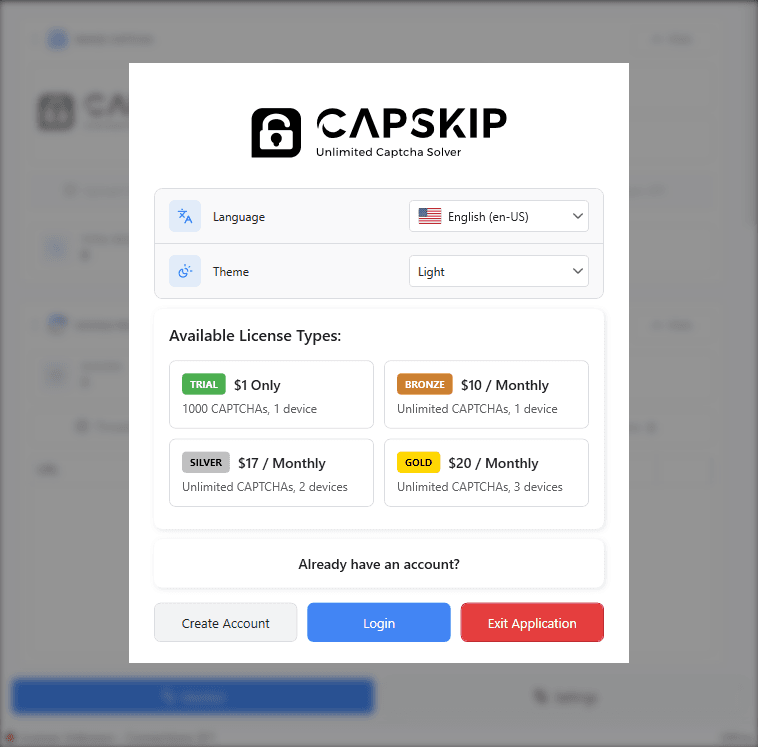
Install CapSkip and launch it. The first time it opens, a welcome window lets you choose the interface language and a light or dark theme, and lists the available license types. If you already have an account, click Login and enter your username and password. If you do not have one yet, click Create Account to see the plans, or get your license here: Get Your License Now
After subscribing, your CapSkip license credentials are sent to your email immediately. Use the username and password you received to log in. If you forget your password, click Reset it here in the login window.
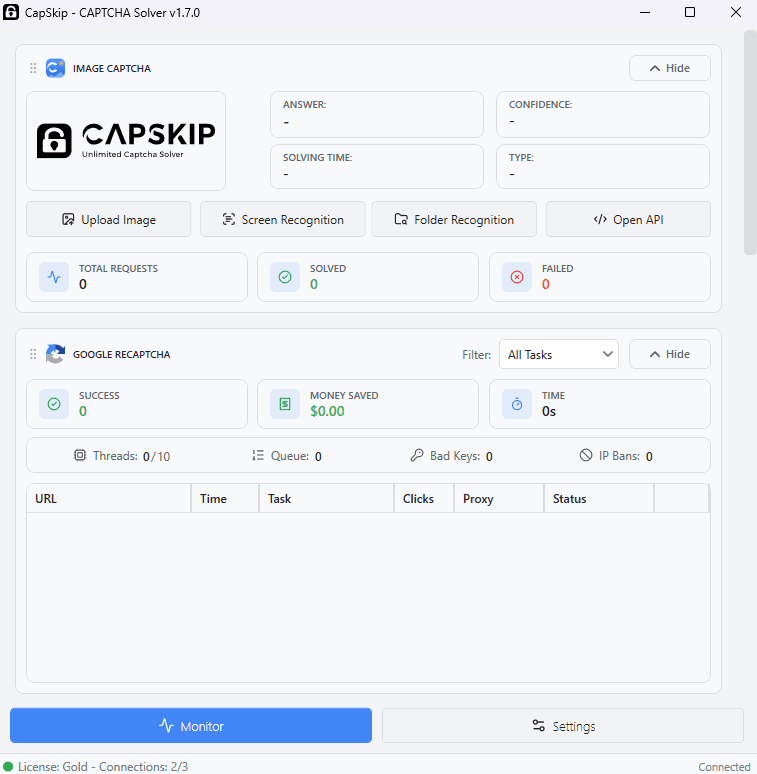
Once you are logged in, the status bar at the bottom of the window shows your license type, how many connections it is using out of the number it allows, and whether CapSkip is connected.
Application Overview
CapSkip has two tabs, Monitor and Settings. Switch between them with the buttons at the bottom of the window.
Monitor shows CAPTCHA solving activity in real time, with a section for each CAPTCHA type: Image CAPTCHA, Google reCAPTCHA, Cloudflare Turnstile, GeeTest, ALTCHA, CaptchaFox, Capy and Friendly Captcha.
Settings is grouped into five sections:
- Connection: the service CapSkip emulates, the port it listens on, and the hosts file.
- Captcha types: one row for each CAPTCHA type, with its threads, timeouts, retries, proxies and options.
- API access: API key validation, key credits and remote key management.
- App: dark mode, language, startup and software updates.
- Help & diagnostics: the guided tour, diagnostic reports, charts, logging, image debugging and resetting settings.
The first time you open CapSkip after installing it, a short guided tour offers to walk you through the settings you need to start solving. You can run it again at any time from Getting Started.
In this guide we walk through every section and option in the same order as the app, so you know exactly what each one does.
Monitor Tab
The Monitor tab is where you watch CAPTCHAs being solved. Every CAPTCHA type has its own section with live statistics and, for the browser and proof-of-work types, a task list.
Reorder Sections
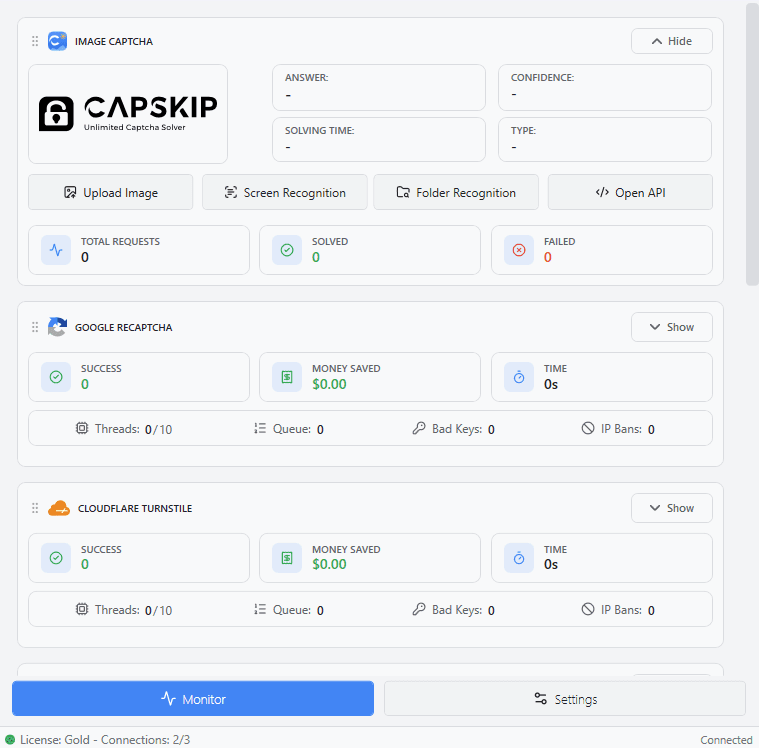
Each section has a dotted drag handle to the left of its name. Drag a section up or down to put the CAPTCHA types you use most at the top. The order is saved and kept after you restart CapSkip.
Show and Hide
Each section has a Hide button in its top right corner that collapses it. In the Image CAPTCHA section it hides the image, result cards and charts; in the other sections it hides the task list. The counters keep updating while a section is hidden, and hiding sections uses less CPU under heavy load. Show brings it back.
This replaces the Disable UI Updates options of earlier versions.
Filter
Sections with a task list have a Filter menu, so you can show All Tasks, or only tasks that are Waiting, In Process or Finished.
Statistics
Each section shows three tiles: Success, the number of solved tasks; Money Saved, what the same solves would have cost on a paid CAPTCHA service; and Time, the typical solve time.
The row underneath shows active threads out of the maximum and the tasks waiting in the queue. reCAPTCHA, Cloudflare Turnstile, CaptchaFox and Capy also count Bad Keys, tasks rejected because of an invalid site key, and reCAPTCHA and Turnstile count IP Bans, tasks blocked by the CAPTCHA provider, which usually means your proxies need replacing.
Task List
Each task shows its page URL, how long it took, its current step, the proxy it used (Direct when no proxy was used) and a coloured status label. Right-click a task to open its URL in your browser or to show its details.
Task Details
Double-click any task, or right-click it and choose Show Task Details, to see exactly what was sent to CapSkip: the page URL, the parameters and the raw request, each with a Copy button. This is the quickest way to check an integration.
For failed Cloudflare Turnstile tasks with Debug mode on, the window also shows what the solver saw: a screenshot of the browser, the outcome and the reason it stopped.
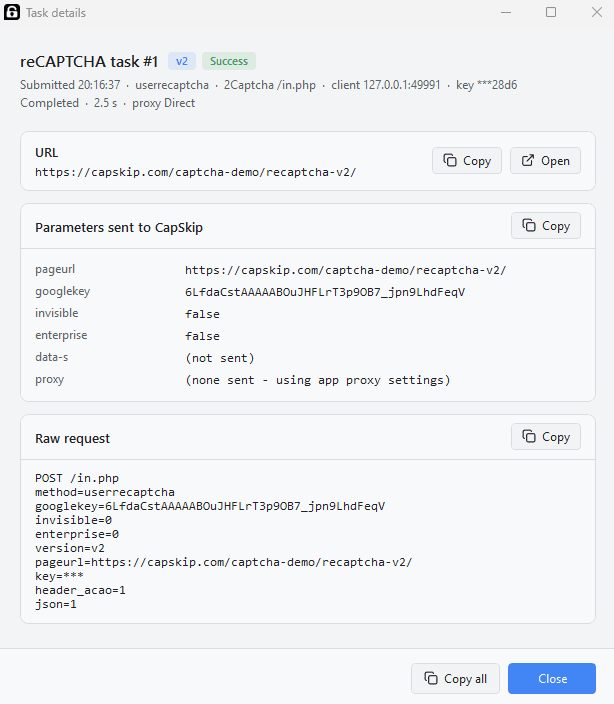
Image CAPTCHA
This section lets you test image CAPTCHAs and see the result instantly. It also counts every image CAPTCHA solved through the API.
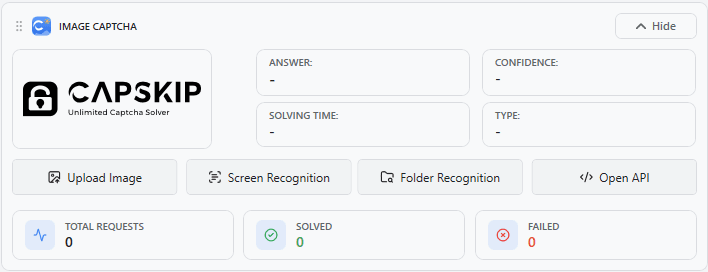
After an image is processed, its Answer, Confidence, Solving Time and detected Type appear next to it. Total Requests, Solved and Failed count every image CAPTCHA processed. When Real-time Charts are on, two charts show incoming requests and the queue.
Upload Image
Upload a single image file to test CAPTCHA solving manually.
Screen Recognition
Select and capture an area of your screen for instant CAPTCHA recognition.
Folder Recognition
Process all the images in a folder in one batch.
Open API
Opens CapSkip's local API page in your browser. It shows whether the server is running, the service CapSkip is emulating, the API endpoint and whether API key validation is on, with links to the API documentation, SDKs and browser extensions.
The API endpoint shown there is the address your software or code sends its requests to.
Google reCAPTCHA
This section shows real-time statistics and the task list for Google reCAPTCHA tasks.
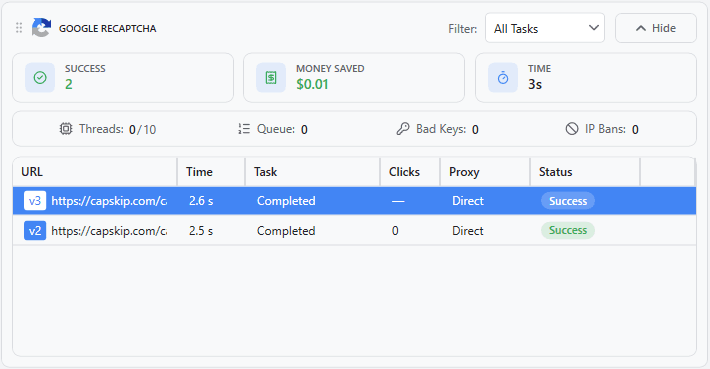
A badge next to each URL shows the reCAPTCHA version: v2, v2 inv for invisible v2, v3, and ent for Enterprise. The Clicks column shows how many image tiles were clicked to pass a v2 challenge.
Cloudflare Turnstile
This section shows real-time statistics and the task list for Cloudflare Turnstile tasks.
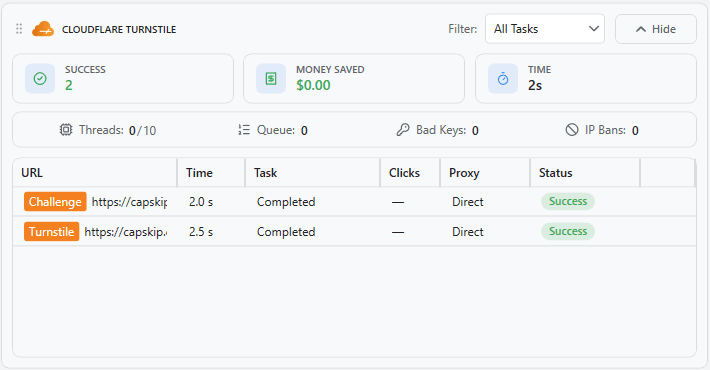
A badge next to each URL shows the task type: Turnstile for a Turnstile widget, Challenge for a Cloudflare challenge page solved for a token, or Clearance for a cf_clearance cookie task.
Debug mode, when it is on, lets you double-click a failed task to see a screenshot of the browser and why it stopped.
GeeTest
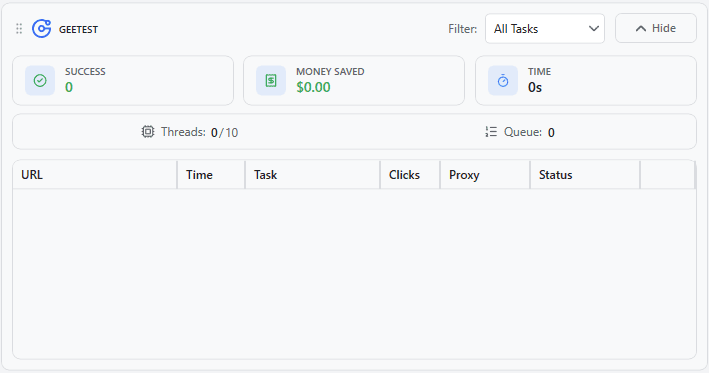
This section shows real-time statistics and the task list for GeeTest tasks.
ALTCHA
This section shows real-time statistics and the task list for ALTCHA proof-of-work challenges.
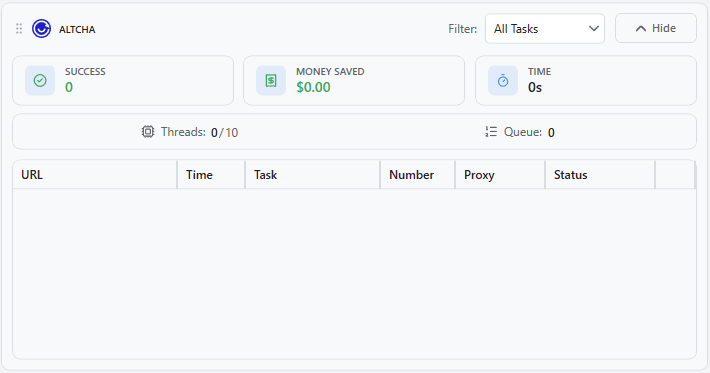
The Number column shows the number CapSkip found to solve the challenge, which is roughly how much work the challenge cost.
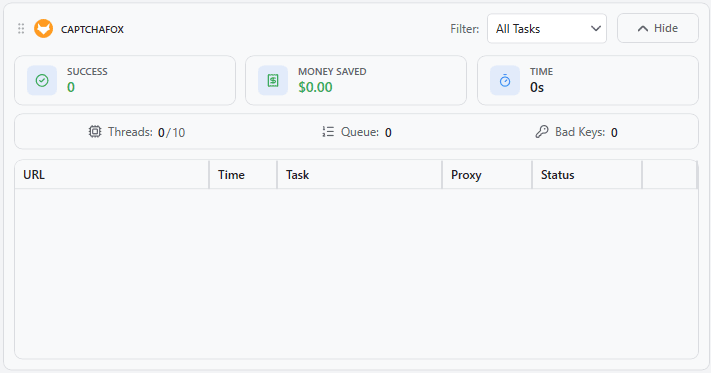
CaptchaFox
This section shows real-time statistics and the task list for CaptchaFox tasks.
Capy
This section shows real-time statistics and the task list for Capy puzzle tasks.
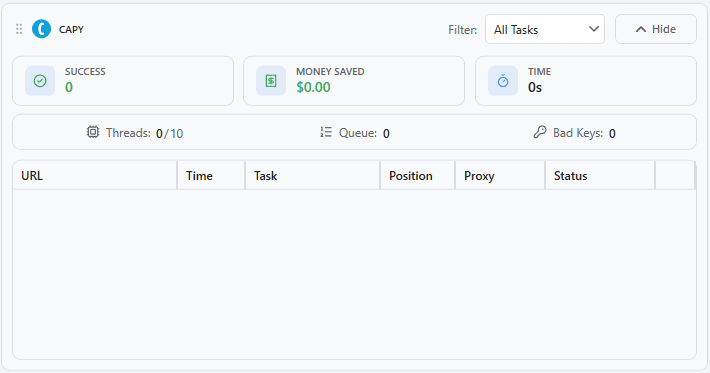
The Position column shows where the puzzle piece was placed.
Friendly Captcha
This section shows real-time statistics and the task list for Friendly Captcha v1 and v2 tasks.
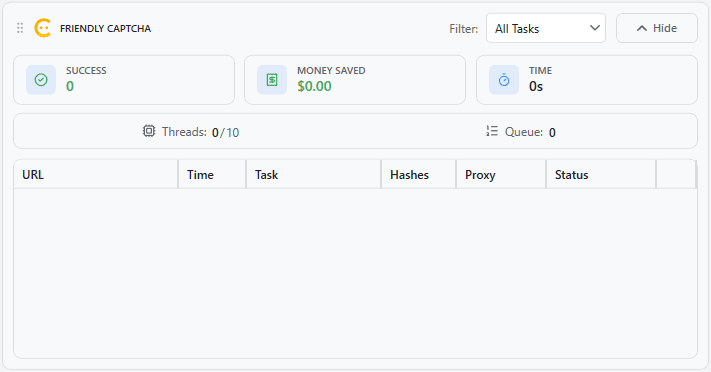
The Hashes column shows how much proof-of-work each solve took. For Friendly Captcha v2 this also reflects how hard the service made the puzzle for that address.
Connection Settings
The Connection section sets which CAPTCHA service CapSkip emulates and where it listens for API requests from your software.
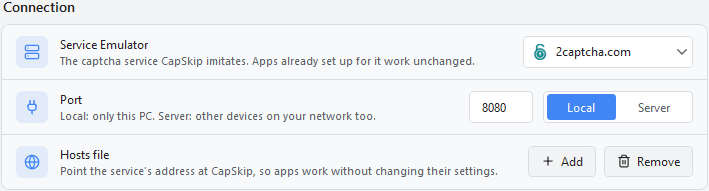
Service Emulator
The Service Emulator lets CapSkip replicate the API of popular CAPTCHA solving services, so you can connect CapSkip to third-party software without modifying that software.
Supported services: 2captcha.com, rucaptcha.com, Anti-Captcha, CapMonster Cloud, CapSolver, DeathByCaptcha, SolveCaptcha, NextCaptcha and Captchas.io.
When you select a service, CapSkip answers requests in exactly that service's format. If your software already supports 2Captcha, for example, select 2captcha.com in CapSkip, point your software at CapSkip's address and keep the rest of its configuration as it is.
If your software cannot change the address it sends requests to, use the Hosts file option below, so requests meant for the real service are routed to CapSkip automatically.
The Service Emulator is what lets CapSkip fully replace paid CAPTCHA services while staying compatible with your existing automation tools.
Port
The Port setting defines how CapSkip accepts API requests from your software.
- Local: CapSkip listens only on this computer (127.0.0.1). Recommended when your software and CapSkip run on the same machine.
- Server: CapSkip also accepts connections from other devices on your network, or from the internet on a VPS. Recommended for VPS or dedicated server setups, where a static public IP gives the most stable remote access. Server mode requires CapSkip to run as administrator.
The number field sets the port CapSkip listens on, between 1024 and 65535. Make sure no other application is using it; if one is, CapSkip warns you and suggests a free port.
Hosts File
Add points the official address of the selected service at your local CapSkip, by adding an entry to the Windows hosts file.
Once it is added, every request your software sends to the original service is answered by CapSkip instead. Your software's configuration stays unchanged, which makes this the simplest way to integrate CapSkip when the address cannot be changed.
Remove deletes that entry and restores normal access to the real service. Use it to stop routing traffic through CapSkip.
Changing the hosts file requires administrator privileges.
Captcha Types
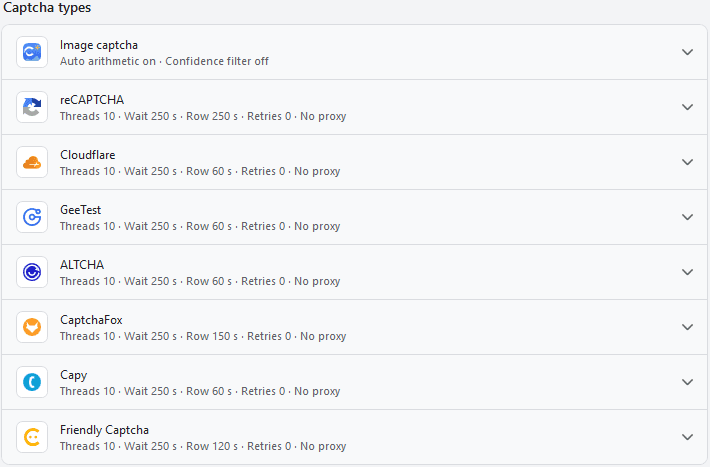
Every CAPTCHA type CapSkip solves has its own row in the Captcha types section. Each row shows a live summary of its current settings, such as Threads 10 · Wait 250 s · Row 60 s · Retries 0 · No proxy. Click a row to open it; opening one row closes the others.
Threads, Timeouts, Retries and Proxies
The reCAPTCHA, Cloudflare, GeeTest, ALTCHA, CaptchaFox, Capy and Friendly Captcha rows all start with the same five controls:
- Max. Threads: how many tasks of this type CapSkip solves at the same time. A higher value increases throughput but uses more CPU, RAM and proxy capacity, so set it to what your system can handle.
- Wait Timeout: how many seconds a task may wait in the queue for a free thread before it gives up.
- Row Timeout: how many seconds a single solve may take once it has started. If it takes longer, the task is stopped and marked as failed.
- Retries (0-3): how many times CapSkip retries a failed attempt. More retries raise the success rate but can add to the total solving time.
- Configure Proxies: opens the proxy settings for this CAPTCHA type. Each type has its own proxy list; see Proxy Configuration.
Image Captcha Settings
The Image captcha row controls how CapSkip reads image CAPTCHAs: which recognition models are loaded, arithmetic solving and the confidence filter.
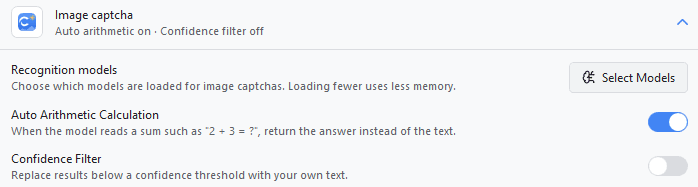
Recognition Models
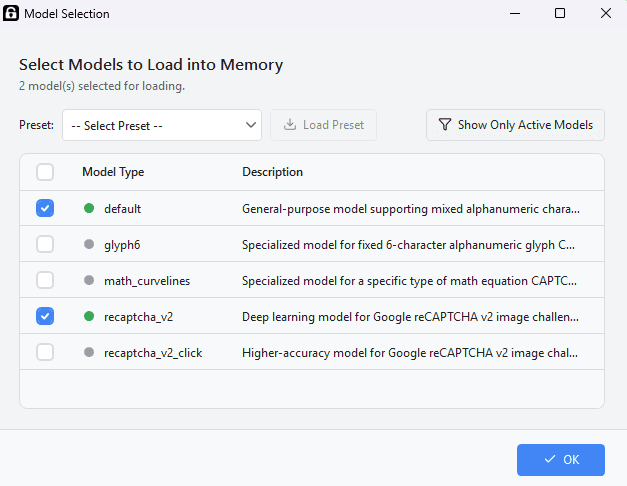
Select Models lets you choose which AI models are loaded for image CAPTCHAs. Loading only the models you need improves performance and reduces memory use.
In the Model Selection window you can tick models one by one or load a preset, show only the active models, and click OK to apply your choice. At least one model must stay selected. Click a model to see its properties and example images.
Auto Arithmetic Calculation
When the model reads a sum such as "2 + 3 = ?", CapSkip returns the answer instead of the text. Turn it off if you need the raw text of math CAPTCHAs.
Confidence Filter
The Confidence Filter controls how CapSkip handles low-confidence results. It is off by default.
The model gives every solved image CAPTCHA a confidence score. Turn the filter on, choose a threshold between 10% and 90%, and enter the text to return instead. When a result's confidence is below the threshold, CapSkip returns your text, for example ERROR_CAPTCHA_UNSOLVABLE, so your software can treat it as a failed solve and request a new CAPTCHA.
reCAPTCHA Settings
Configure Google reCAPTCHA v2 and v3 solving: threads, timeouts, retries, proxies and the reCAPTCHA options below.
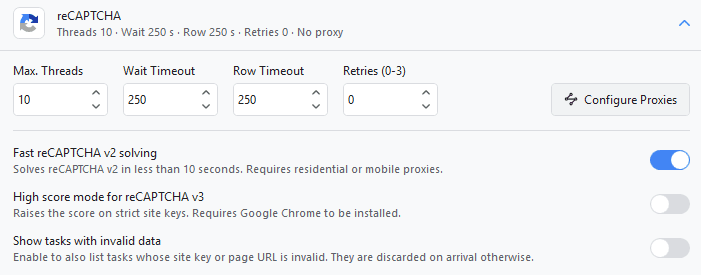
Configure Proxies
Proxies are required for reliable reCAPTCHA solving. Google limits how much a single IP address can solve, so stable, clean proxies have the biggest effect on your success rate. See Proxy Setup Here
Fast reCAPTCHA v2 solving
Solves reCAPTCHA v2 in less than 10 seconds. It is on by default and needs residential or mobile proxies.
If a fast solve does not succeed, the task continues automatically with standard image challenge solving, so leaving it on never costs you a solve. If you do not use residential or mobile proxies for reCAPTCHA, turn it off to save a few seconds per task.
On sites with stricter checks, Fast solving needs Google Chrome installed on the machine.
High score mode for reCAPTCHA v3
Raises the reCAPTCHA v3 score on strict site keys.
It is off by default, because it only helps on sites that score aggressively and it uses more memory and CPU per solve. If your v3 tokens are already accepted, leave it off. Turn it on when a site rejects tokens that CapSkip delivers successfully, which usually means the score is too low rather than the solve failing.
Google Chrome must be installed. If it is not, the hint under the toggle says so and v3 keeps solving normally. CapSkip also falls back to normal solving whenever high score mode cannot run, so turning it on can never break solving.
Show tasks with invalid data
Off by default. Turn it on and tasks whose site key or page URL is invalid are listed on the Monitor tab too, along with the reason they failed, instead of being discarded on arrival. This helps while you are wiring up an integration, when a task that disappears with only an error code is harder to debug than a visible failed row. The trade-off is a noisier list if a client keeps sending malformed requests.
Cloudflare Settings
Configure Cloudflare solving: threads, timeouts, retries, proxies and the options below. The threads, timeouts and retries apply to Turnstile tasks and to cf_clearance tasks alike.
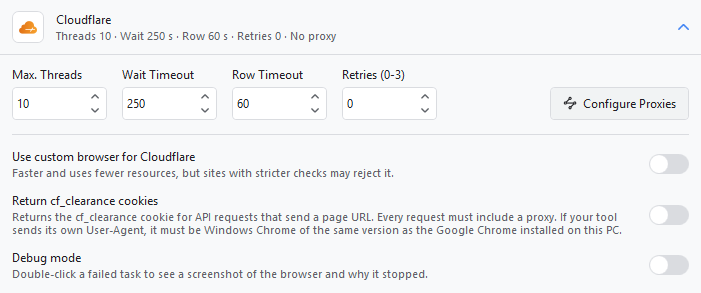
Configure Proxies
Proxies are required for reliable Turnstile solving. Make sure they are stable, clean and properly configured. cf_clearance tasks do not use this list: each one runs through the proxy sent with its own API request. See Proxy Setup Here
Use custom browser for Cloudflare
By default, CapSkip solves Turnstile in Chromium. Turn this on to solve it in the CapSkip Custom Browser instead, which is faster and uses less CPU, but sites with stricter checks may reject it. This option does not affect cf_clearance tasks.
Return cf_clearance cookies
Lets API requests ask for the cf_clearance cookie of a site behind Cloudflare’s full-page check, the “Just a moment...” page, instead of a Turnstile token. Your tool can then fetch the site with ordinary HTTP requests.
It is off by default, and while it is off these requests are refused. Every request must include a proxy, because the cookie only works from the address that earned it. If your tool sends its own User-Agent, it must be Windows Chrome of the same version as the Google Chrome installed on this PC. Otherwise leave it out and use the User-Agent CapSkip returns with the cookie. See the request format in the API docs
Debug mode
Records why a Cloudflare task failed, Turnstile or cf_clearance, so you can see what went wrong instead of guessing from the status column.
It is off by default. Turn it on, reproduce the problem, then double-click the failed task on the Monitor tab to open its details: a screenshot of what the browser was showing when the solver gave up, the stage it had reached, how long it ran, and a plain explanation of why it stopped.
Nothing is captured for tasks that succeed. The work happens only after a task has already failed, so leaving it on does not slow down normal solving, though each failure costs one screenshot. Screenshots are saved to %AppData%\CapSkip\Debug\cloudflare, and only the newest 120 are kept.
GeeTest Settings
Configure threads, timeouts, retries and proxies for GeeTest challenges.

Configure Proxies
Proxies are required for reliable GeeTest solving. Make sure they are stable, clean and properly configured. See Proxy Setup Here
ALTCHA Settings
Configure threads, timeouts, retries and proxies for ALTCHA proof-of-work challenges.

Configure Proxies
ALTCHA is solved locally on your CPU. Proxies are used only when a task sends a challenge URL for CapSkip to fetch. Tasks that include the challenge itself are solved without any network request, so most setups do not need proxies here.
CaptchaFox Settings
Configure threads, timeouts, retries and proxies for CaptchaFox.

Configure Proxies
CaptchaFox is solved in a browser, so proxies matter here. It uses only the proxies you add in this row: while the list is empty, CaptchaFox tasks are solved directly from your own IP address.
Capy Settings
Configure threads, timeouts, retries and proxies for Capy puzzles.

Configure Proxies
Proxies are used only to fetch Capy's puzzle images, which are the only requests a Capy solve makes.
Friendly Captcha Settings
Configure threads, timeouts, retries and proxies for Friendly Captcha v1 and v2.

Configure Proxies
Proxies are used for every Friendly Captcha request. They are worth setting for v2: the proof-of-work it asks for rises with how much an address has been solving, so spreading v2 tasks over several proxies lowers the work per solve.
Proxy Configuration
Each CAPTCHA type has its own proxy configuration, opened with the Configure Proxies button in its row. The window title shows which type you are editing.
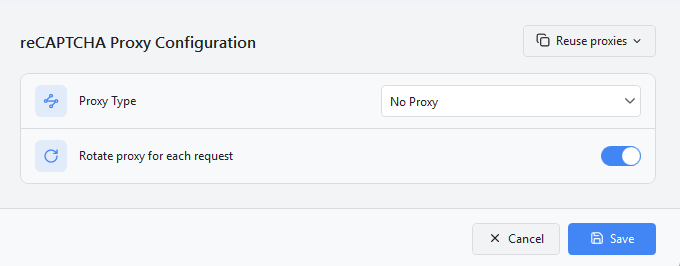
Image CAPTCHA solving does not use proxies. For reCAPTCHA, Cloudflare Turnstile, GeeTest and CaptchaFox, proxies decide your success rate. ALTCHA, Capy and Friendly Captcha use them only for the requests described in their own sections above.
Select the proxy type based on your setup:
- No Proxy: uses your own IP address. It works for a while, but repeated requests will likely get your IP blocked.
- Tor (SOCKS5): uses a local Tor service. Set the Tor SOCKS port: 9050 for the Tor daemon or Expert Bundle, 9150 for Tor Browser.
- SOCKS5 Proxy List: for SOCKS5 proxy lists.
- SOCKS5 with DNS (SOCKS5h) List: also routes DNS resolution through the proxy.
- HTTP/HTTPS Proxy List: standard HTTP or HTTPS proxies.
- Single Custom Proxy: one dedicated proxy, entered as protocol, host, port and an optional username and password. Test Connection checks that it works.
Choose the type that matches your proxy provider.
Recommended
What decides your success rate is the reputation of the proxy's IP address, not its protocol. reCAPTCHA and Cloudflare score every address that reaches them, and they know which address ranges belong to hosting companies.
- Residential and mobile proxies use addresses that internet providers give to homes and phones. They have the best reputation: fewer and easier challenges, higher reCAPTCHA v3 scores and fewer IP bans. Fast reCAPTCHA v2 solving needs them.
- ISP proxies, also sold as static residential, run in data centres but are registered to consumer internet providers. They are nearly as trusted as residential addresses, and faster and more stable.
- Datacenter proxies are cheap and fast, but their addresses are known to belong to hosting companies. reCAPTCHA answers them with more and harder image challenges and low v3 scores, and Fast v2 tasks fall back to the slower image challenge. Cloudflare Turnstile is usually more forgiving, but residential and ISP addresses still fail less often.
- Use private proxies. A shared proxy is used by other customers at the same time, and whatever they do lowers its reputation for you too. Avoid free public proxy lists: they are slow, most are already blacklisted, and whoever runs them can see the traffic that passes through.
- Keep one IP for the whole solve. A single solve makes many requests. If your provider gives you a rotating gateway, use sticky sessions of a few minutes instead of a new IP on every request, so the address does not change halfway through a challenge. Most providers let you create several sticky sessions; add each one as its own line so CapSkip can spread tasks across them.
- Have enough of them. Google and Cloudflare limit how much one address can solve. Aim for at least as many proxies as Max. Threads, so tasks running at the same time do not share an address, and add more if the Monitor tab starts counting IP bans.
- Pick any protocol. HTTP, HTTPS, SOCKS5 and SOCKS5h all work, and the protocol does not change how a site sees the address, so use whichever your provider offers. SOCKS5h also resolves domain names through the proxy, which helps when your own DNS is filtered.
After loading a list, click Check Proxies to find dead proxies before they cost you failed tasks.
Proxy List Format
CapSkip accepts three formats, one proxy per line. Use the one your proxy provider gives you:
- host:port
Use this format if you have whitelisted your own IP address in your proxy provider's dashboard. - username:password@host:port
Use this format if your proxy requires a username and password. - host:port:username:password
Use this format if your provider exports authenticated proxies with the username and password after the port. Paste the list as it is, no conversion needed.
Adding Proxies
You can add proxies in three ways:
- Paste them directly into the list
- Load them from a URL, and optionally refresh the list from that URL automatically every 5 minutes, 30 minutes, 1 hour or 1 day
- Load them from a file
After loading, the window shows how many proxies are configured.
Check Proxies
Check Proxies tests every proxy in the list. Test threads sets how many are tested at the same time, from 1 to 100. The result shows how many work, their average response time, and which ones failed.
Reuse Proxies
Reuse proxies copies the proxy settings of another CAPTCHA type, so you do not have to paste the same list several times.
Rotate Proxy for Each Request
Enable this option to use a different proxy for every new CAPTCHA request. This improves success rates and reduces the risk of IP-based rate limits.
Proxies Sent With a Task
If your software sends a proxy with the task itself, for example in 2Captcha's proxy and proxytype parameters or with a task type that is not Proxyless, CapSkip solves that task through it instead of the list here, and its retries stay on that proxy too.
This matters for Cloudflare challenge pages. Cloudflare ties the clearance cookie to the visitor and device it was issued to, so send the proxy your software will keep browsing through, and use the clearance CapSkip returns together with the user agent that comes with it.
API Key Validation
API Key Validation, in the API access section, controls which API keys are allowed to send requests to your CapSkip instance.
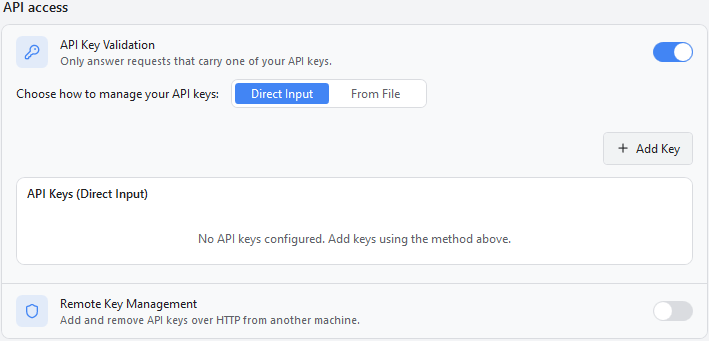
When it is on, only requests that carry one of your keys are processed. Requests with an invalid or missing key are rejected.
When it is off, CapSkip accepts requests with any key value. The key parameter is still required by the API format, but any string is accepted.
This is especially useful when CapSkip runs on a VPS or server that several users or external tools can reach.
Managing Keys
When validation is on, choose how to manage your keys:
- Direct Input: click Add Key, give the key a name, then type a key or click Generate to create one. Keys appear in the list, where you can copy or remove them.
- From File: click Browse to pick a text file with your keys, and Refresh to reload it after you edit the file.
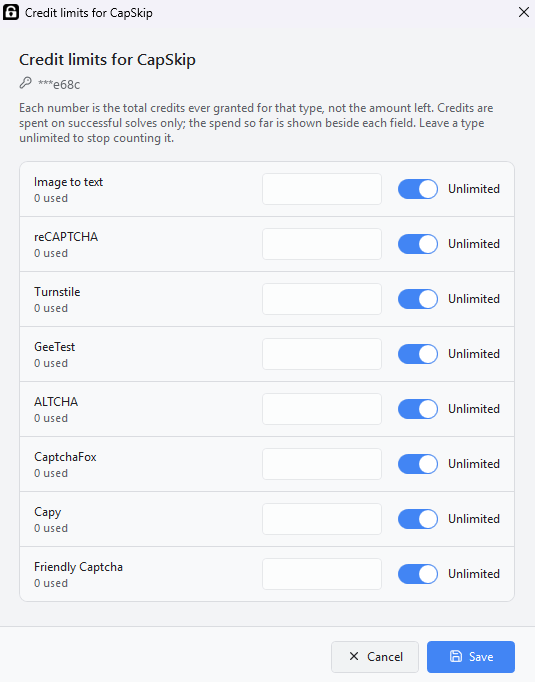
Credits
Every key has a Credits column. Click a key to see, for each CAPTCHA type, how many credits are left, how many were used and how many failed, and when the key was last used.
Set limits gives the key a credit limit for each CAPTCHA type: Image to Text, reCAPTCHA, Turnstile, GeeTest, ALTCHA, CaptchaFox, Capy and Friendly Captcha. Each number is the total credits ever granted for that type, not the amount left. Credits are spent on successful solves only. Leave a type on Unlimited to stop counting it.
Usage carries over when you update CapSkip.
Remote Key Management
Lets you add, list and delete solver API keys over HTTP from another machine, instead of opening a remote desktop session to the computer running CapSkip. It is the Server mode counterpart to the key list above: the same keys, managed from wherever you administer the machine.
It is off by default, and it stays inactive until you both switch it on and generate a token. While it is off, the admin routes answer a plain 404, so a scan cannot even tell the feature exists.
Generate creates a 256-bit random token and shows it once, with a Copy button. Copy it right away: CapSkip stores only a salted hash, so it cannot be shown again. Afterwards the row shows when the token was generated. Generating a new token replaces the old one, so any client still using the old one starts getting 401 responses.
Revoke clears the stored token. The endpoints stay routed but reject everything until you generate a new one.
For a full walkthrough of putting these endpoints to work, see How to Provision CAPTCHA API Keys for Your Customers. It covers the whole cycle: enabling Remote Key Management and generating the token, issuing a key from a subscription webhook with /admin/keys/add, revoking it on cancellation with /admin/keys/delete, and reconciling the live key list against your billing records with /admin/keys/list.
App Settings
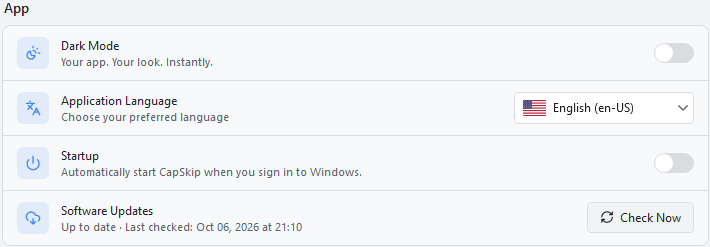
The App section holds CapSkip's general preferences.
Dark Mode
Switches the whole interface to a dark theme. Theme changes apply immediately.
Application Language
Choose your preferred interface language. CapSkip is available in English, Arabic, Chinese (Simplified), French, German, Italian, Japanese, Korean, Persian, Portuguese (Brazil), Russian and Spanish.
Startup
Starts CapSkip and signs you in automatically when you sign in to Windows, so it is always running and ready to solve CAPTCHAs without starting it by hand.
Software Updates
Shows whether CapSkip is up to date and when it last checked. Check Now looks for a new version.
When an update is available, install it as soon as possible to get the latest fixes and improvements. You can see what changed in each version on the Changelog.
Help & Diagnostics
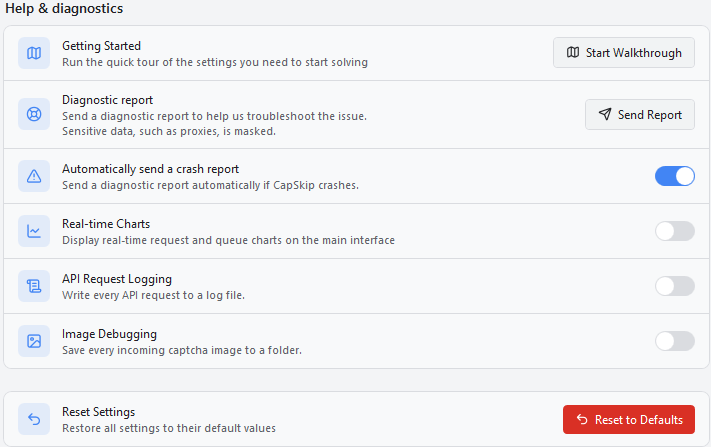
The Help & diagnostics section has the guided tour, troubleshooting tools and the options for charts, logging and resetting CapSkip.
Getting Started
Start Walkthrough runs the quick guided tour of the settings you need to start solving. It takes about two minutes and covers:
- Choosing the service your software or code already uses
- Where CapSkip listens, and when you need the hosts file
- Threads, timeouts and proxies
- Reading the Monitor statistics
- Installing the CapSkip browser extension for Chrome or Firefox
- Trying it on a real CAPTCHA on our demo page
The tour is offered automatically the first time you open CapSkip after installing it.
Diagnostic Report
Sends a diagnostic report about a problem you are seeing right now. Sensitive data, such as proxies, is masked.
Send Report first opens a short Describe the Issue box. Tell us what you were trying to do, any error message you saw, how to reproduce it and when it started. CapSkip then collects the report and uploads it. If it cannot reach our server at that moment, the report is saved and sent automatically the next time it can.
Automatically send a crash report
Sends a diagnostic report on its own if CapSkip closes with an unexpected error. It is on by default and can be turned off at any time.
Real-time Charts
Shows live charts of incoming image CAPTCHA requests and the processing queue in the Image CAPTCHA section of the Monitor tab.
Turn it off to save CPU and RAM, which is recommended on a VPS or under heavy load.
API Request Logging
Writes every incoming API request to a log file, for monitoring, debugging or auditing. When it is on, you can choose the log file path. If you leave it empty, logs are saved to %AppData%\CapSkip\Logs\api_requests_YYYYMMDD.txt.
Turn it off when you do not need it, to save disk space.
Image Debugging
Saves every incoming CAPTCHA image to a folder, which helps when checking incorrect results, testing new CAPTCHA types or preparing images for model improvements. If you leave the folder empty, images are saved to %AppData%\CapSkip\Debug\images\.
Keep it off during normal operation to avoid unnecessary disk use.
Reset Settings
Reset to Defaults restores every setting to its default value, including processing options, proxy configuration and interface preferences. Use it to start fresh or to clear a configuration problem.