
No products in the cart.






CapSkip Browser Extension Guide
Learn how to install and configure the CapSkip browser extension for automatic CAPTCHA solving.
The CapSkip Browser Extension connects your browser to the CapSkip application running on your computer or server and automatically solves supported CAPTCHA challenges.
When a CAPTCHA appears, the extension sends the request to CapSkip through the configured Server IP and Port. CapSkip solves it locally and returns the result, which the extension automatically applies on the page.
Supported CAPTCHA types: image CAPTCHAs, reCAPTCHA v2, reCAPTCHA v2 Invisible, reCAPTCHA v3, Cloudflare Turnstile, GeeTest v3, ALTCHA, CaptchaFox, Capy Puzzle and Friendly Captcha.
Browser Extension Installation
Install the CapSkip browser extension to automatically detect and solve supported CAPTCHA challenges while browsing.

Installation
The CapSkip extension is available for Chrome, Firefox, and Chromium based browsers.
You can install the extension directly from the official browser stores:
Chrome users can install it from the Chrome Web Store.
Firefox users can install it from the Firefox Add-ons store.
For other Chromium based browsers such as Brave, Edge, Opera, or Vivaldi, you can install the extension from the Chrome Web Store because these browsers support Chrome extensions
Extension Popup
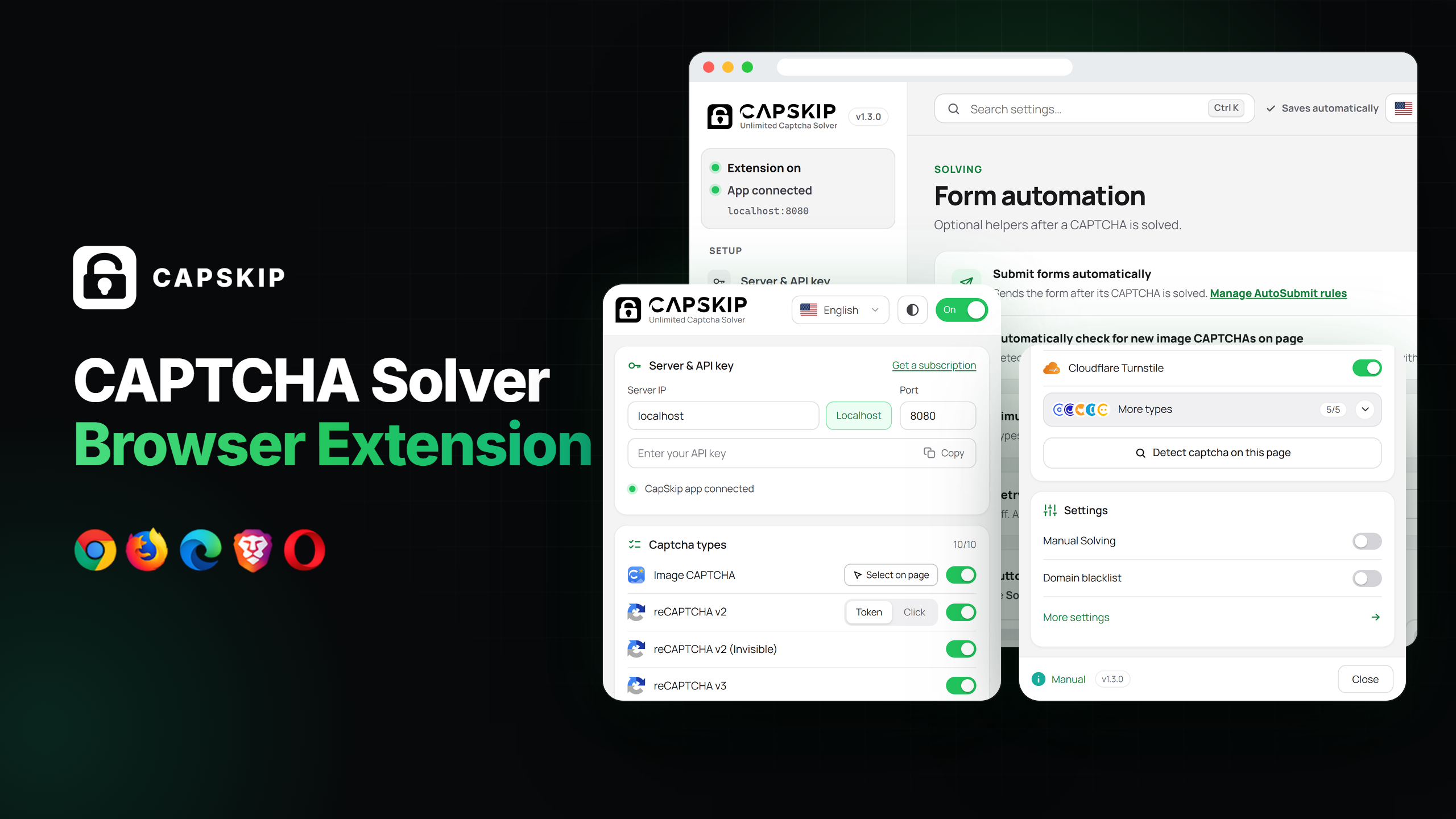
The extension popup opens when you click the CapSkip icon in the browser toolbar. Use it to connect the extension to the CapSkip application, check that the application is reachable, choose which CAPTCHA types it solves and see which CAPTCHAs are on the page you are viewing.
Header Controls
Three controls sit at the top of the popup.
Language: shows the extension in English, Chinese, Spanish, Russian or Persian.
Theme: the round button next to the language. Auto follows your operating system, while Light and Dark keep one look all the time.
On / Off switch: turns automatic CAPTCHA solving on or off. When it is off, the extension stays inactive and sends nothing to CapSkip.
The popup and the settings page share these controls, so a change in one shows up in the other.
Server & API Key
This section connects the browser extension to your local CapSkip application. The extension sends CAPTCHA solving requests to the CapSkip server running on your machine or VPS.
1. Server IP
Enter the IP address where CapSkip is running.
localhost should be used when CapSkip is installed on the same computer as the browser. Localhost, the button next to the field, fills it in for you.
If CapSkip is running on a VPS or remote server, enter the server’s public IP address.
2. Port
Specify the port configured in CapSkip. The default port is 8080.
The extension will send requests to IP:Port to communicate with the CapSkip API.
3. API Key
Enter your CapSkip API key if API key validation is enabled in the CapSkip application.
The API key adds an extra security layer to ensure that only authorized applications or extensions can send CAPTCHA solving requests to your CapSkip instance.
If API key validation is disabled in the CapSkip settings, this field can be left empty.
Copy, the button at the end of the field, copies the key to your clipboard. Get a subscription, the link at the top of the card, opens capskip.com if you do not have a license yet.
4. Connection Status
The line under the API key shows whether the CapSkip application answers at the address you entered:
Green, CapSkip app connected: everything is ready.
Red, CapSkip app not reachable: nothing answered at that IP and port. Check that CapSkip is running and that the IP and port match its settings.
Amber, CapSkip app needs attention: something answered, but the check did not pass, for example because the API key was rejected.
The check runs when the popup opens and again shortly after you edit the IP, port or API key. To run it again yourself, hover over the status light and click it.
Captcha Types
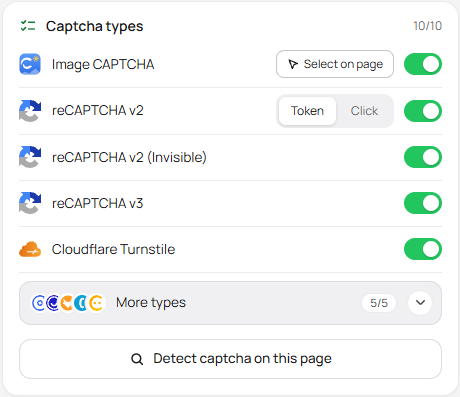
This card lets you choose which CAPTCHA types the extension detects and solves. Turn a type’s switch on to solve it, or off to leave that type alone. The counter next to the card title, for example 10/10, shows how many types are on.
The five most common types are listed first. GeeTest v3, ALTCHA, CaptchaFox, Capy Puzzle and Friendly Captcha sit under More types at the end of the list: click it to open or close the group. Its own counter shows how many of those five are on, and the popup remembers whether you left it open.
1. Image CAPTCHA
Automatically detects and solves supported image-based CAPTCHAs through the CapSkip application.
For image CAPTCHA solving to work, you must link the CAPTCHA image to the input field where the answer should be inserted. Select on page, the button on this row, starts the guided setup. See the Image CAPTCHA Setup section for detailed instructions.
2. reCAPTCHA v2
Handles Google reCAPTCHA v2 challenges. Two solving modes are available:
Token mode: retrieves the verification token and passes it to the page.
Click mode: solves the image challenge by clicking it, like a person would.
3. reCAPTCHA v2 (Invisible)
Solves invisible reCAPTCHA v2 challenges that run automatically when a form is submitted or a button is clicked.
4. reCAPTCHA v3
Processes reCAPTCHA v3 verification requests and returns the required token to the page.
5. Cloudflare Turnstile
Automatically solves Cloudflare Turnstile challenges detected on supported websites. For sites that keep showing a new challenge, see Advanced Settings.
6. GeeTest v3
Solves GeeTest v3 challenges.
7. ALTCHA
Solves ALTCHA challenges.
8. CaptchaFox
Solves CaptchaFox challenges.
9. Capy Puzzle
Solves Capy Puzzle challenges.
10. Friendly Captcha
Solves Friendly Captcha challenges.
Detect Captcha on This Page
Detect captcha on this page, the button at the bottom of the Captcha types card, scans the tab you are viewing, including every frame inside it, and lists each CAPTCHA it finds. Use it to check what a page is protected by and whether CapSkip will solve it.
Each result shows the CAPTCHA type and a status:
Enabled: the type is switched on, so CapSkip solves it.
Disabled: CapSkip supports the type, but its switch is off. Turn it on in the list above.
Not supported: CapSkip does not solve this type, for example hCaptcha or Arkose Labs (FunCaptcha).
Below the status, the result lists the parameters a solving task needs, such as the sitekey and pageurl. Copy copies them as JSON, which is handy when you send the same task to the CapSkip API from your own code, or when you contact support.
A note above the results tells you when nothing will be solved anyway, because the extension is switched off or the site is on your domain blacklist. If the popup says it cannot scan the page, reload the tab and try again: tabs that were open before the extension was installed or updated can only be scanned after a reload.
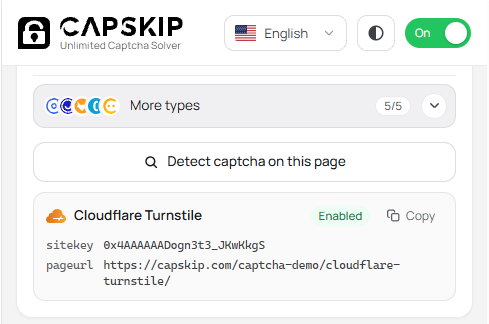
Image CAPTCHA Solving Setup
To solve image CAPTCHAs automatically, configure the extension to detect the CAPTCHA image and define the input field where the solved result should be inserted. This setup usually only needs to be done once per website.
You can do this in two ways:
1. Select on page: use the guided picker in the extension popup (recommended for most users).
2. Right-click menu: mark the CAPTCHA image and answer field separately using the context menu.
Both methods create the same saved binding. After setup, CapSkip can capture the image, send it to the solver, and insert the answer automatically on future visits.
Method 1: Select on Page
Use this option to link the CAPTCHA image and answer field in one guided flow. It also works on sites that block the right-click menu.
Open the website that shows the image CAPTCHA, then open the CapSkip extension popup.
Next to Image CAPTCHA, press Select on page. The page enters picker mode and a CapSkip banner appears at the top with step-by-step instructions.
Step 1 of 2: click the CAPTCHA on the page. The extension highlights elements as you move the mouse. A preview of your selection appears in the banner.
Step 2 of 2: click the input field where the CAPTCHA answer should be typed.
When both steps are complete, the banner confirms that the CAPTCHA is linked and CapSkip is ready to solve. Press Esc at any time to cancel.
Linking a CAPTCHA that is already linked on that page updates the existing binding instead of adding a second one. Saved bindings appear on the settings page under Sites & rules, Saved bindings, where you can review or delete them.
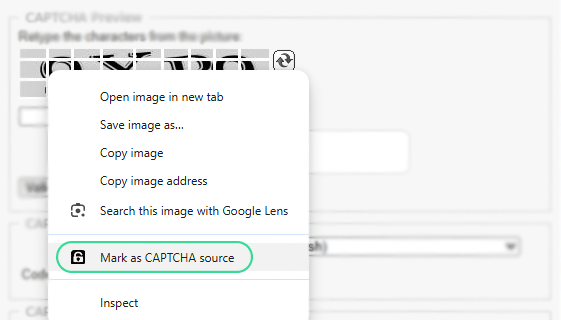
Method 2: Right-click Menu
To configure automatic image CAPTCHA solving with the right-click menu, first right-click the CAPTCHA image and choose "Mark as CAPTCHA source". This tells the extension which image should be captured and sent to the CapSkip solver. The page confirms that the image location is saved.
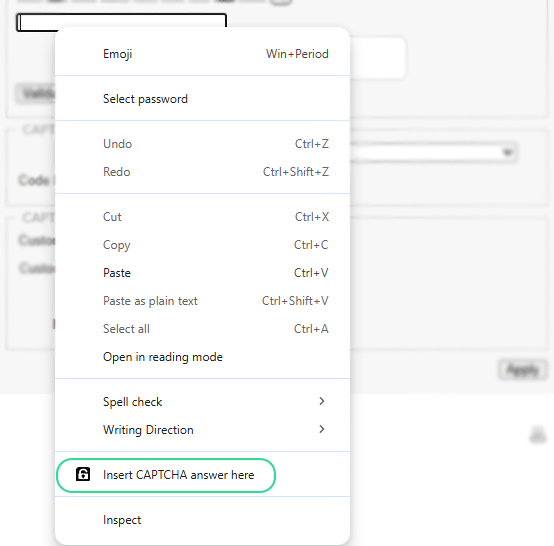
Then, right-click the input field where the solution should be entered and choose "Insert CAPTCHA answer here". The page confirms that the answer field is saved and CapSkip is ready to solve.
Once both elements are configured, the extension will automatically capture new CAPTCHA images, send them to the CapSkip application for solving, and insert the returned answer into the designated input field whenever a CAPTCHA appears on the page.
Popup Settings
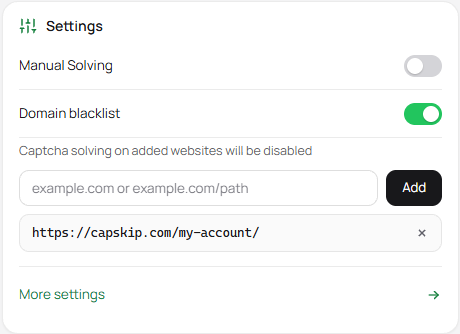
The Settings card at the bottom of the popup holds the switches you are most likely to change while browsing. Everything else is on the settings page.
Manual Solving
When enabled, CAPTCHAs will only be solved when you press the solver button, labelled Solve with CapSkip, on the page. This gives you full control over when requests are sent to the CapSkip application. When disabled, supported CAPTCHAs will be solved automatically.
Manual Solving always keeps the solver button visible, even if its placement is set to Hidden. The same switch is at the top of the Captcha types page in the settings, where each type then shows On · manual.
Domain Blacklist
This option lets you disable CAPTCHA solving on specific websites. Turn it on and a panel opens below the switch:
Add: type a domain such as
example.comand press Add or Enter.Add current site: adds the domain of the website open in your current tab in one click. The button shows that domain.
Remove: the button next to each entry takes it off the list.
A domain also covers its subdomains, so example.com blocks www.example.com and shop.example.com too, and wildcards such as *.example.com are not needed. An entry that contains a slash, such as example.com/login, blocks only the pages whose address contains that text. The popup tells you when an entry is not a valid domain or is already in the list.
The list only applies while this switch is on. You can also edit it as plain text, one entry per line, on the Sites & rules page of the settings.
More Settings
Opens the full settings page in a new tab. It is described in the next section.
Settings Page
The settings page opens from More settings in the popup, or from Options in the menu of the CapSkip icon in your browser toolbar. It holds every option the extension has, grouped into pages in the left sidebar:
Setup: Server & API key.
Solving: Captcha types, Form automation, and Sites & rules.
More: Advanced, Proxy, and Backup & restore.
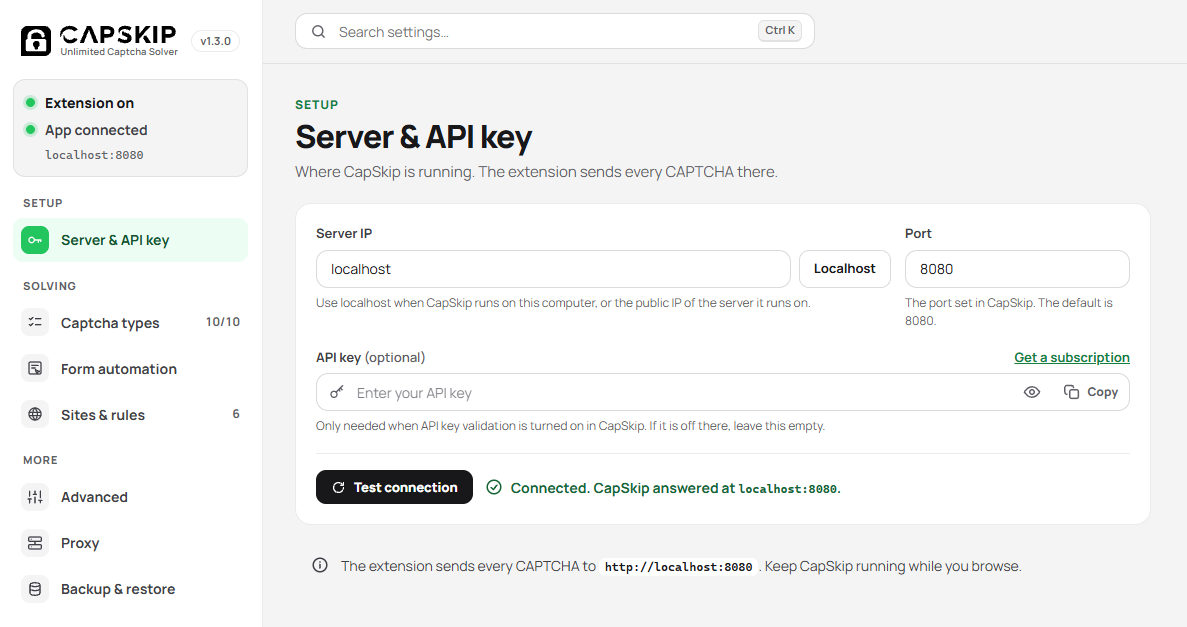
Sidebar and Status
The box at the top of the sidebar shows two separate things: whether the extension’s own switch is on (Extension on or Extension off), and whether the CapSkip application answers at the configured address (App connected, App not reachable or App needs attention). The address it checks is shown underneath. Click the box to open Server & API key.
Badges next to the sidebar entries show how many CAPTCHA types are on, how many blacklist entries, AutoSubmit rules and saved bindings you have under Sites & rules, and On next to Proxy while a proxy is in use.
Search
The search box at the top finds any setting by name. Press Ctrl K (Cmd K on a Mac) to jump to it, use the arrow keys to move through the results and press Enter to open the page that holds the setting, which is briefly highlighted. Esc closes the results.
Saving and Undo
There is no Save button. Every change is saved as you make it, and the indicator next to the search box confirms it with Saved.
When you remove a blacklist entry, an AutoSubmit rule or a saved binding, a message at the bottom of the page offers Undo for a few seconds.
Server & API Key
This page has the same Server IP, Port and API key fields as the popup, each with a short hint underneath, plus two extras:
Show API key: the eye button in the API key field reveals the key, which is hidden on this page by default.
Test connection: asks CapSkip at that address to answer and tells you the result in plain words: connected, cannot reach CapSkip (is it running?), CapSkip rejected the API key, or the address is not CapSkip at all (check the IP and port).
The note under the card shows the exact address the extension sends every CAPTCHA to.
Captcha Types
The same ten CAPTCHA types as in the popup, shown as cards. Each card says whether the type is On · automatic, On · manual (Manual Solving is on) or Off. The reCAPTCHA v2 card has the same Token and Click choice as the popup.
The Manual Solving switch sits at the top of this page, and Enable all and Disable all turn every type on or off at once. The note at the bottom links to your saved bindings, which image CAPTCHAs need before they can be solved.
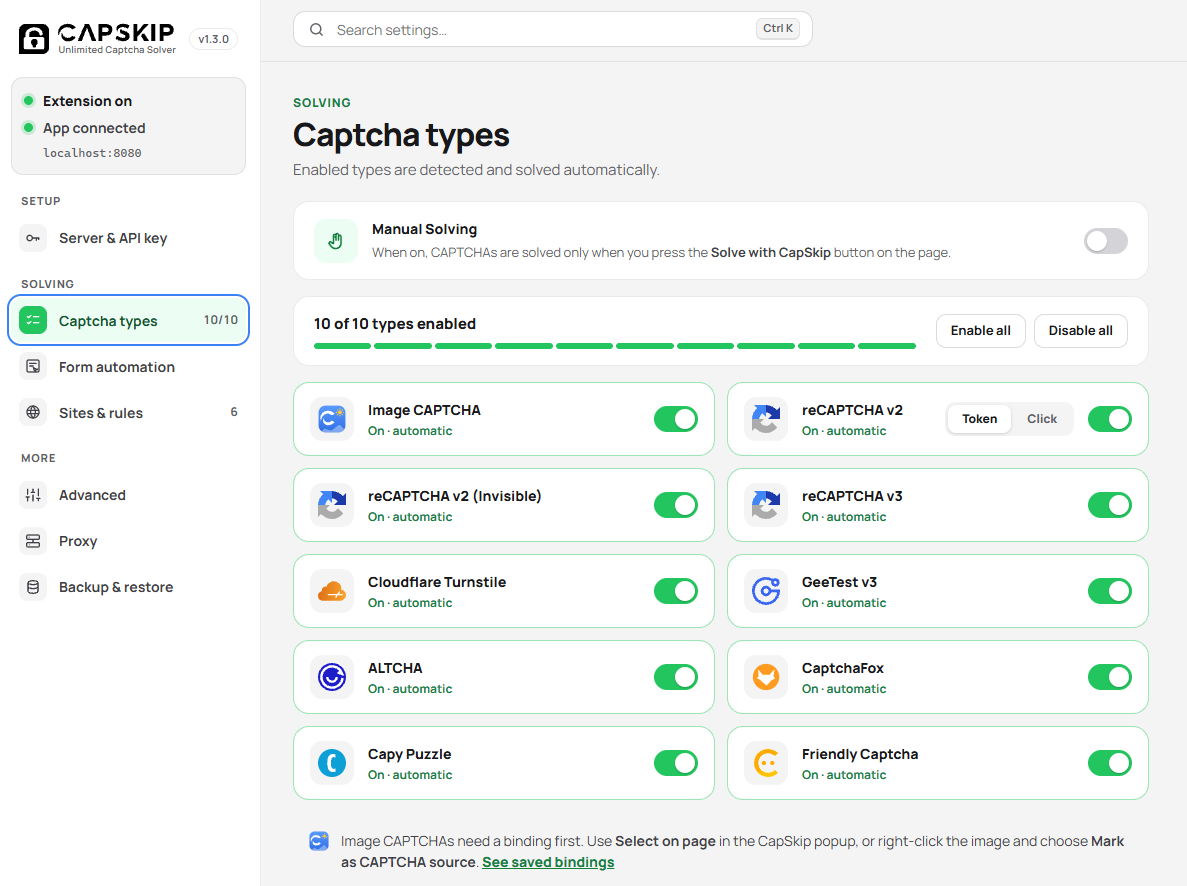
Form Automation
Form automation, under Solving in the settings sidebar, holds optional helpers that run around a solve: submitting the form, watching for new image CAPTCHAs, typing like a person and retrying after an error. It also sets where the solver button appears.
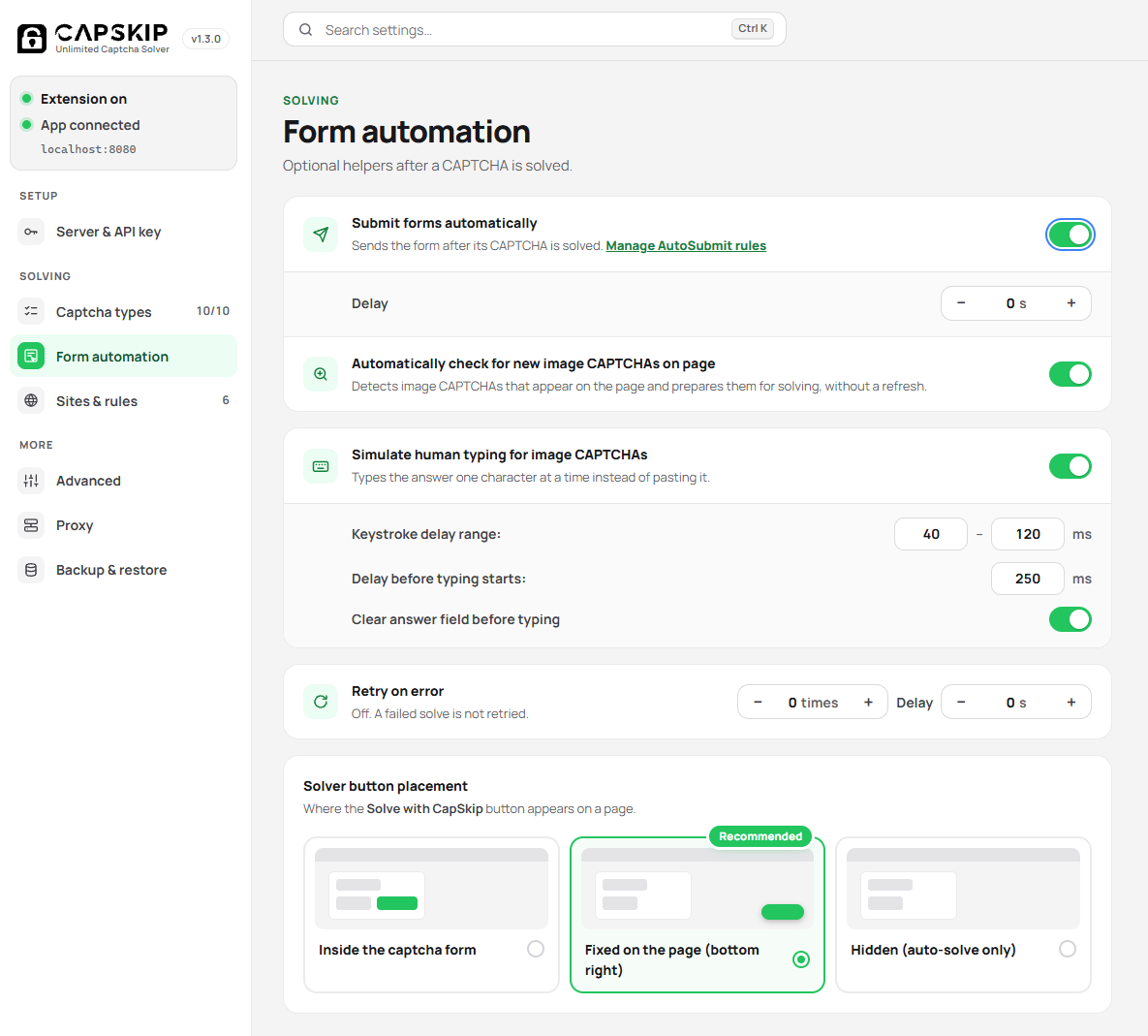
Submit Forms Automatically
When enabled, the extension submits the form after its CAPTCHA is solved. Turning it on shows a Delay setting: the number of seconds to wait before submitting.
When an AutoSubmit rule matches the page, that rule runs instead of the default submit, after the same delay. Manage AutoSubmit rules, the link under the switch, takes you to them.
Automatically Check for New Image CAPTCHAs
Automatically detects new image CAPTCHAs on the page and prepares them for solving without refreshing.
Simulate Human Typing for Image CAPTCHAs
Types CAPTCHA answers one character at a time instead of pasting them, with realistic pauses to better mimic human behavior. Turning it on shows three options:
Keystroke delay range: the minimum and maximum pause between two characters. The default is 40 to 120 ms.
Delay before typing starts: a short pause before the first character. The default is 250 ms.
Clear answer field before typing: removes any existing text from the input field before the answer is typed.
These options help create more natural and reliable interactions with CAPTCHA fields.
Retry on Error
If a solve fails, the extension can try again automatically. Use the minus and plus buttons, or type a number, to set how many times it retries and the delay between attempts in seconds. The line under the title sums up what is set, and 0 times turns retrying off.
Errors that a retry cannot fix, such as an invalid API key, are not retried.
Solver Button Placement
Choose where the solver button appears on the page by clicking one of the three pictures.
Inside the captcha form: the button appears next to the CAPTCHA, inside the form.
Fixed on the page (bottom right): the button floats in the bottom right corner of the page. This is the default and the recommended choice.
Hidden (auto-solve only): no button is shown and CAPTCHAs are solved automatically. If Manual Solving is on, the button still appears in the bottom right corner, because it is the only way to start a solve.
The Solve with CapSkip Button
The solver button is a dark capsule with the CapSkip lock. It shows what is happening with each CAPTCHA:
Ready: it reads Solve with CapSkip. Click it to start a solve when Manual Solving is on.
While solving: a ring turns around the lock and a timer counts the seconds.
When solved: the CapSkip lock shows in a green circle, with the time the solve took.
On error: the label says what went wrong in a few words, for example Connection failed, Invalid API key or Captcha expired. Reload the page. Hover over the button to see the error code, or click it to try again.
When the button is fixed at the bottom right, it rests as a small round lock and opens when you hover over it or while it has something to report. About two seconds after a solve it tucks back into a green round button.
Sites & Rules
Sites & rules, under Solving in the settings sidebar, collects everything that applies to particular websites: where CapSkip stays off, what it does after solving, and which image CAPTCHAs it reads. It has three cards: Domain blacklist, AutoSubmit rules and Saved bindings.
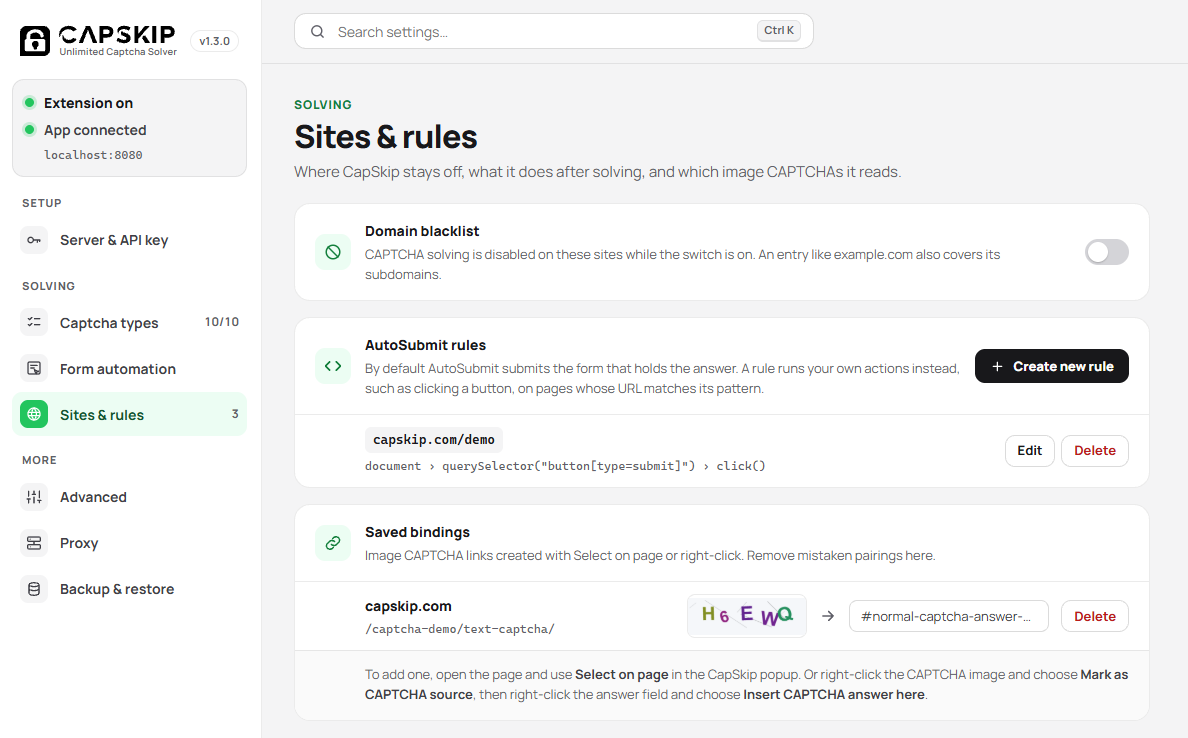
Domain Blacklist
The same blacklist as in the popup, with more room. The count shows how many entries you have, and two views let you edit them:
List: add one entry at a time and remove entries with the cross next to them.
Plain text: edit the whole list at once, one entry per line. Lines that cannot match any site are pointed out under the box.
Entries work the same way as in the popup: example.com also covers its subdomains, and an entry with a slash, such as example.com/login, blocks only the pages whose address contains it. The list only applies while the switch is on.
AutoSubmit Rules
This section allows you to define custom actions that should run after a CAPTCHA is solved.
By default, the AutoSubmit feature automatically submits the form that contains the CAPTCHA answer field. However, some websites require additional steps after the CAPTCHA is solved, such as clicking a specific button or triggering another action. In those cases, you can create custom rules here.
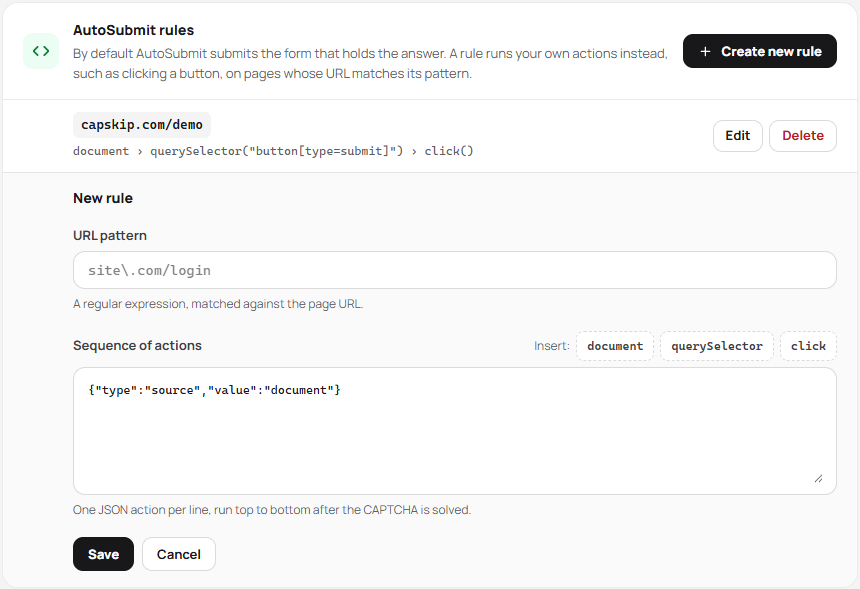
Create New Rule
Create new rule opens the rule editor inside the card. Fill in the URL pattern and the sequence of actions, then press Save, or Cancel to drop it. If the pattern is not a valid regular expression or no actions are given, the editor says so before saving.
Saved rules are listed in the card with their pattern and a short, readable summary of their actions, such as document › querySelector("#submit-button") › click(). Use Edit to change a rule and Delete to remove it.
URL Pattern
Define the website where the rule should apply. The URL pattern is a regular expression, for example ^https://example\.com/login. The extension runs the rule only on pages whose address matches it, and the first matching rule wins.
Sequence of Actions
The Sequence of Actions field defines the steps the extension should perform after the CAPTCHA is solved. Each action represents a command executed by the extension to interact with elements on the page.
Actions are written as individual JSON objects, one per line, and are executed from top to bottom in the order they appear.
Each action contains a type and a value, and some actions may include additional arguments using args.
The Insert buttons above the field add the three most common actions for you: document, querySelector and click. Change the selector in the inserted line to match the button on your page.
Basic Structure
Each action follows this format:
{"type":"ACTION_TYPE","value":"ACTION_VALUE","args":[...]}Multiple actions are written on separate lines, for example:
{"type":"source","value":"document"}
{"type":"method","value":"querySelector","args":["#submit-button"]}
{"type":"method","value":"click"}
In this example the extension will:
Start from the page document
Find the element matching the selector
#submit-buttonClick the selected element
Because actions run sequentially, the order of the lines is important.
Common Actions
1. source
Defines the starting context where elements will be searched.
Example:
{"type":"source","value":"document"}2. method: querySelector
Selects an element using a CSS selector.
Example:
{"type":"method","value":"querySelector","args":["#submit-button"]}This finds the element with the ID submit-button.
3. method: click
Triggers a click on the currently selected element.
Example:
{"type":"method","value":"click"}This simulates clicking the element selected in the previous step.
Saved bindings
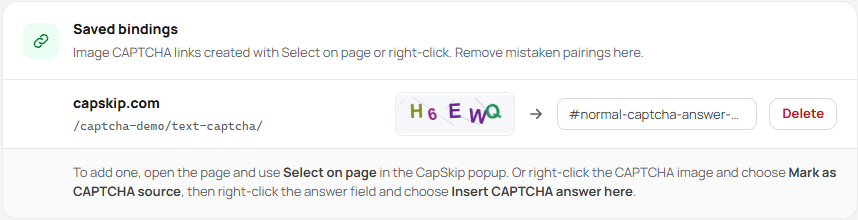
Saved bindings, the last card on the Sites & rules page, store which element is the image CAPTCHA and which input receives the answer on a given site. Select on page and the right-click options create them.
Each row shows the site and page path, a preview of the CAPTCHA and the linked answer field. A binding marked No field linked or No captcha linked is only half set up, and No preview means no picture of the CAPTCHA was saved.
Delete any binding that is wrong or outdated, then set it up again on the live page. The note under the list explains both ways to add one.
Advanced Settings
Extra behaviour for tricky sites. Leave these options off unless you need them.
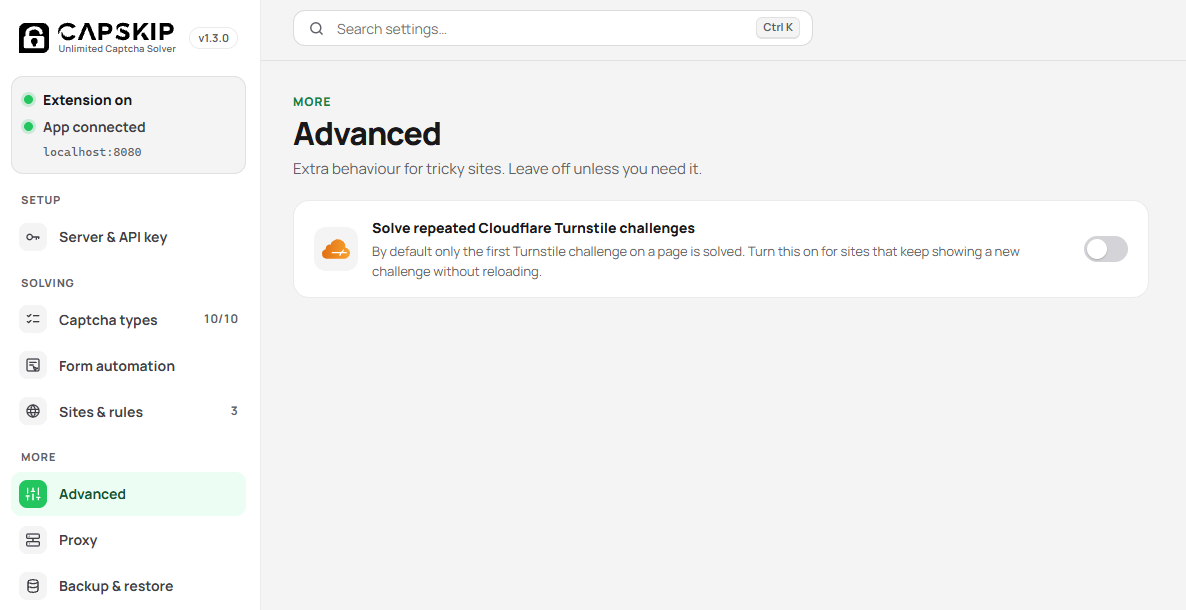
Solve Repeated Cloudflare Turnstile Challenges
By default, only the first Cloudflare Turnstile challenge on a page is solved. Turn this on for sites that keep showing a new challenge without reloading the page.
Proxy
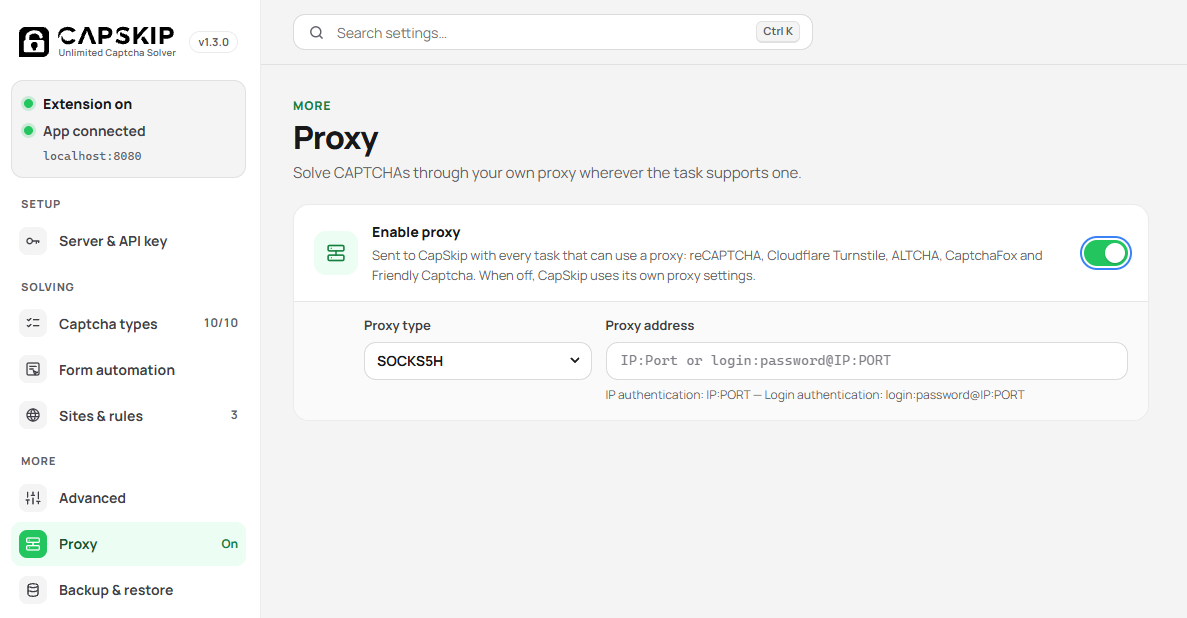
Proxy settings send a proxy to CapSkip together with every reCAPTCHA, Cloudflare Turnstile, ALTCHA, CaptchaFox and Friendly Captcha task, so CapSkip solves those tasks through it. When the proxy is off, CapSkip follows the proxy settings of the application, explained in the setup guide.
Enable Proxy
Turns the proxy on or off without deleting the address you entered. Proxy type and Proxy address appear while it is on, and the Proxy entry in the sidebar shows an On badge.
Proxy Type
Choose the protocol your proxy uses: HTTP, HTTPS, SOCKS5 or SOCKS5H. SOCKS5H resolves website addresses on the proxy side instead of on your computer.
Proxy Address
Enter the proxy in one of two formats:
IP authentication:
IP:PORTLogin authentication:
login:password@IP:PORT
Backup & Restore
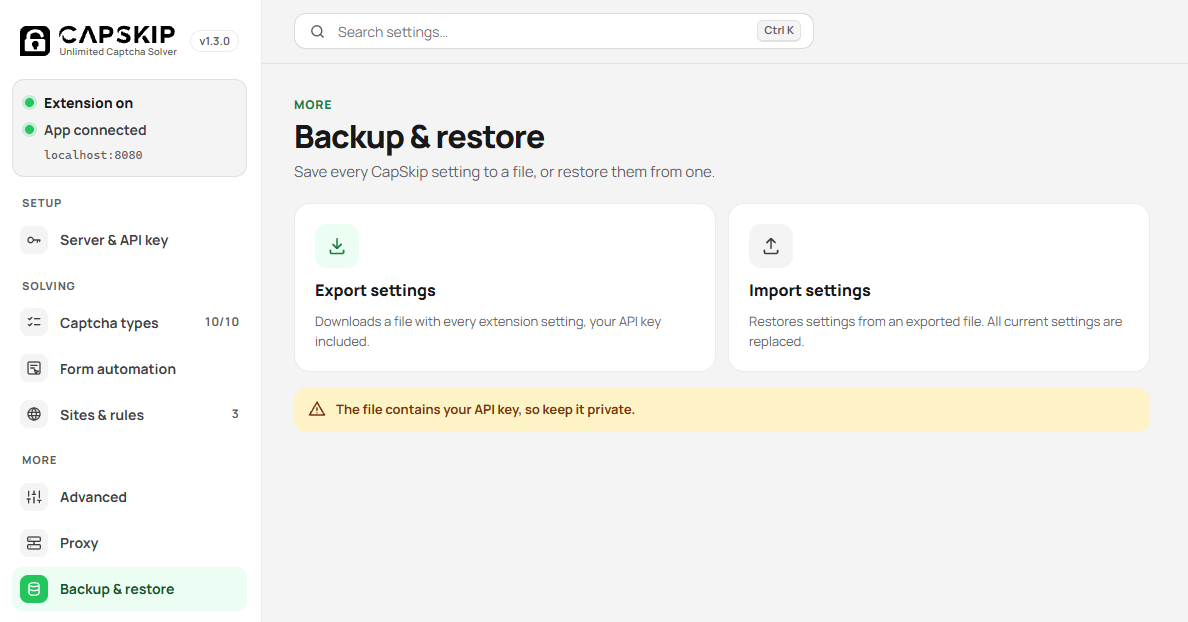
Save every CapSkip extension setting to a file, or restore your settings from one. This is the quickest way to move your setup to another browser or computer.
Export Settings
Downloads a file with all your extension settings. The file contains your API key, so keep it private.
Import Settings
Restores settings from an exported file. After you confirm, it replaces all current CapSkip settings. Only files exported by the CapSkip extension are accepted.