
No products in the cart.
Getting Started with CapSkip
A complete step-by-step guide to configure, and start solving CAPTCHAs.
Setting up CapSkip is simple and straightforward.
First, download the Windows application from this link: [Download Link]
Install CapSkip and launch the application. You will be prompted to enter your username and password. If you have not yet subscribed to one of our plans, you can purchase a license here: Get Your License Now
After subscribing, your CapSkip license credentials will be sent to your email immediately. Use the received username and password to log in.
Application Overview
CapSkip consists of two main tabs: Monitor and Settings.
In the Monitor tab, you can view CAPTCHA solving activity in real time. This includes incoming tasks, current processing status, solved results, and performance statistics.
In the Settings tab, you can:
Select the service emulator
Load models for CAPTCHA solving
Configure proxies
Enable or disable API key validation
Customize application behavior
In this tutorial, we will walk through each configuration option in detail so you fully understand how CapSkip works and can start using it effectively right away.
Image CAPTCHA Solving
This section allows you to test image CAPTCHAs and instantly see the solving result within the application.
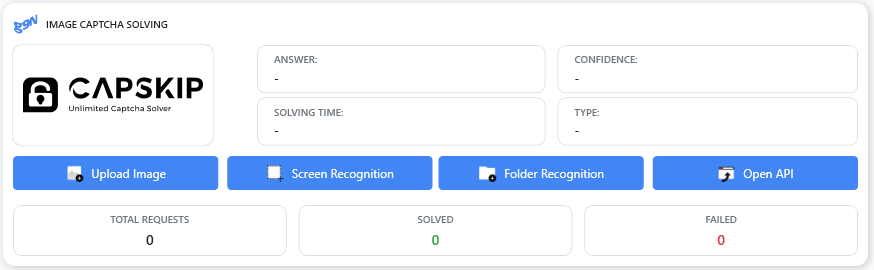
You can upload images manually, capture CAPTCHA areas from your screen, or process multiple images from a folder. The result, confidence score, solving time, and detected CAPTCHA type are displayed after processing.
Upload Image
Upload a single image file to test CAPTCHA solving manually.
Screen Recognition
Select and capture a specific area of your screen for instant CAPTCHA recognition.
Folder Recognition
Process multiple images from a selected folder in batch mode.
Open API
Opens the API interface panel, where you can view the current API URL, web server status, the service CapSkip is emulating, available endpoints, and supported request and response methods.
This section is intended for developers who want to integrate CapSkip into their own applications or automation systems.
Google reCAPTCHA Solving
This section provides real-time monitoring and statistics for Google reCAPTCHA tasks processed by CapSkip.
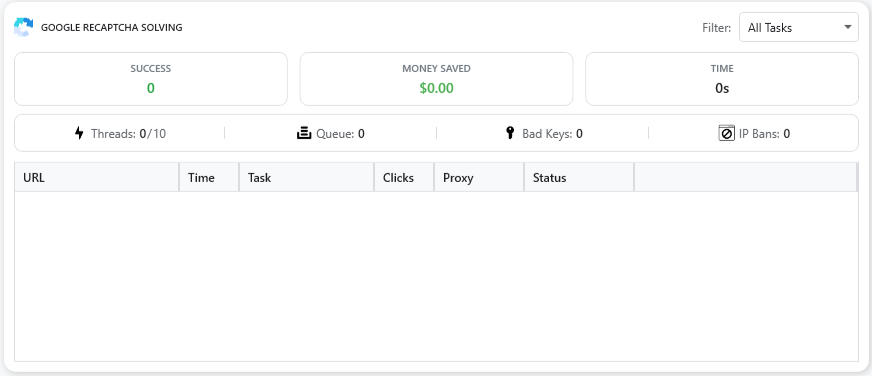
It displays performance metrics, active threads, queue status, and detailed task logs so you can track activity and system efficiency.
Cloudflare Turnstile Solving
This section provides real-time monitoring and statistics for Cloudflare Turnstile tasks processed by CapSkip.
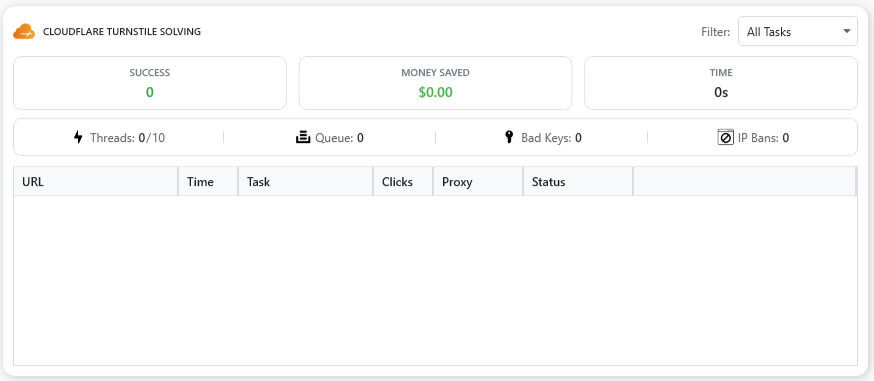
It displays performance metrics, active threads, queue status, and detailed task logs so you can monitor activity and overall system performance.
Connection Settings
Configure the CAPTCHA service emulator and the IP address and port used for API communication with CapSkip.

Service Emulator
The Service Emulator allows CapSkip to replicate the API structure of popular CAPTCHA-solving services. This makes it possible to connect CapSkip to third-party software without modifying that software.
By selecting a supported emulator, CapSkip will listen for incoming requests formatted for that specific service. Any requests sent to that service will be intercepted and processed locally by CapSkip instead of being sent to an external provider.
If you are using software that already supports services like 2Captcha, simply select the corresponding emulator in CapSkip and configure your software as usual. CapSkip will handle the rest.
For seamless redirection, you can use the “Add to Hosts File” option in the Settings tab. This ensures that requests intended for the external service are automatically routed to your local CapSkip instance.
The Service Emulator is the key component that allows CapSkip to fully replace paid CAPTCHA services while maintaining compatibility with existing automation tools.
IP:Port Configuration
The IP and Port settings define where CapSkip listens for incoming API requests.
By default, CapSkip runs locally using 127.0.0.1 and a specified port. Third-party software must send its requests to this address for CapSkip to receive and process them.
If you click the Add to Hosts File button, your system will redirect the emulated service’s official domain to your local CapSkip instance. In that case, you can continue using the original service URL inside your software, and the requests will be automatically routed to CapSkip.
If you are running CapSkip on a VPS or dedicated server, you can set the VPS public IP address along with an unoccupied port. This allows other machines or tools to connect remotely to your CapSkip instance. Make sure the selected port is open and not blocked by your firewall.
Correct IP and Port configuration ensures stable communication between CapSkip and the software sending CAPTCHA requests.
Add to Hosts File
The Add to Hosts File button redirects the official domain of the selected emulated CAPTCHA service to your local CapSkip instance.
Once activated, any requests sent to the original service URL will automatically be routed to CapSkip instead of the external provider. This allows you to keep your third-party software configuration unchanged while replacing the service entirely with CapSkip.
This method is the simplest way to integrate CapSkip, as no API endpoint modifications are required inside your automation software.
Administrator privileges may be required to modify the system hosts file.
Remove from Hosts File
The Remove from Hosts File button restores your system’s original network configuration.
It removes the redirection entry previously added to the hosts file, allowing requests to be sent to the real external service again.
Use this option if you want to stop routing traffic through CapSkip or revert back to the original CAPTCHA provider.
Processing Settings
Configure how CapSkip processes CAPTCHA tasks, including model selection, arithmetic solving, and interface performance options.

Select Models
Click Select Models to choose which AI models will be loaded for CAPTCHA solving. You can enable or disable specific models depending on your needs and available system resources. Loading only the required models can improve performance and reduce memory usage.
Auto Arithmetic Calculation
Enable this option to automatically solve arithmetic-based image CAPTCHAs. When activated, CapSkip detects mathematical expressions inside supported CAPTCHA images and calculates the correct result automatically.
Disable UI Updates for API Requests
Enable this option to reduce interface updates while processing API requests. This improves performance when handling high volumes of incoming tasks, especially on VPS or server environments where real-time visual monitoring is not required.
reCAPTCHA Solving Settings
Configure performance and behavior options for solving Google reCAPTCHA challenges, including thread limits, timeouts, retries, and proxy configuration.
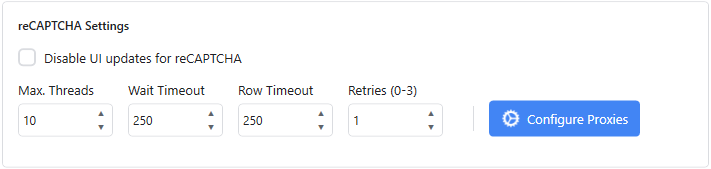
Disable UI Updates for reCAPTCHA
Enable this option to stop real-time interface updates while solving reCAPTCHA tasks. This reduces UI overhead and improves performance when handling high request volumes, especially on VPS or server environments.
Max Threads
Defines the maximum number of concurrent reCAPTCHA solving threads. Increasing this value can improve throughput but will consume more CPU, RAM, and proxy resources. Adjust according to your system capacity.
Wait Timeout
Defines how long CapSkip waits to find an available thread slot before timing out. If all threads are currently busy, CapSkip will wait up to this specified time for a free slot to become available before canceling the request.
Row Timeout
Defines the maximum time allowed for a single CAPTCHA to be solved. If the solving process exceeds this limit, the task will be stopped and marked as failed.
Retries (0–3)
Defines how many times CapSkip will retry a failed reCAPTCHA attempt. A higher retry count improves success rates but can slightly increase overall solving time.
Configure Proxies
Opens the proxy configuration panel. Proxies are required for solving reCAPTCHA. Make sure your proxies are stable and properly configured for optimal performance. See Proxy Setup Here
Cloudflare Turnstile Settings
Configure performance and processing options for solving Cloudflare Turnstile challenges, including thread limits, timeouts, retries, and proxy configuration.
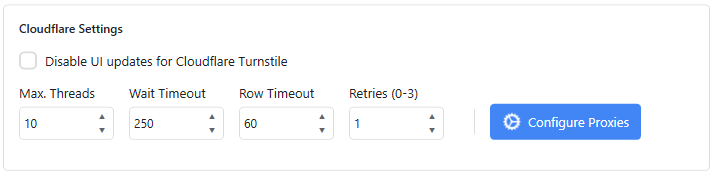
Disable UI Updates for Cloudflare Turnstile
Enable this option to stop real-time interface updates while solving Turnstile tasks. This reduces UI overhead and improves performance when processing a high volume of requests, especially on VPS or server environments.
Max Threads
Defines the maximum number of concurrent Turnstile solving threads. Increasing this value improves throughput but requires more CPU, RAM, and proxy resources. Adjust according to your system capacity and proxy quality.
Wait Timeout
Specifies how long CapSkip waits for an available processing slot if all threads are currently busy. If no slot becomes available within the defined time, the request will time out.
Row Timeout
Defines the maximum time allowed for a single Turnstile challenge to be solved. If this time is exceeded, the task will be stopped and marked as failed.
Retries (0–3)
Determines how many times CapSkip retries a failed Turnstile attempt. Higher retry values improve success rate but can slightly increase total solving time.
Configure Proxies
Opens the proxy configuration panel. Proxies are required for solving Cloudflare Turnstile. Make sure your proxies are stable, clean, and properly configured for optimal performance. See Proxy Setup Here
API Key Validation
API Key Validation allows you to control which API keys are permitted to send requests to your CapSkip instance.
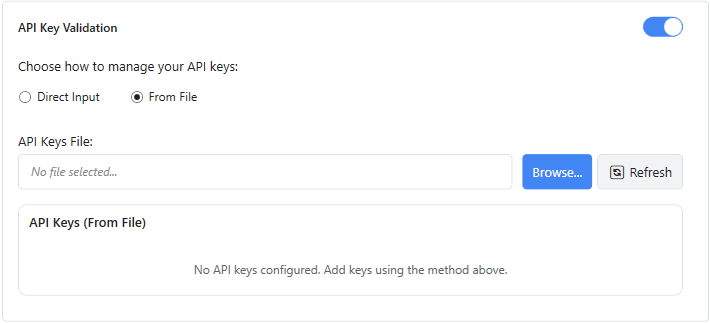
When enabled, only requests containing a valid configured key will be processed. Any request with an invalid or missing key will be rejected.
When this option is disabled, CapSkip accepts requests with any key value. In this mode, the key parameter is still required by the API format, but any string will be accepted.
This feature is especially useful when running CapSkip on a VPS or server accessible by multiple users or external tools.
Confidence Filter
The Confidence Filter allows you to control how CapSkip handles low-confidence solving results.

Each solved CAPTCHA is assigned a confidence score by the model. If the confidence score falls below the defined percentage threshold, CapSkip will automatically replace the result with a custom response, such as ERROR_CAPTCHA_UNSOLVABLE
Software Updates
The Software Updates section allows you to keep CapSkip up to date with the latest improvements, performance enhancements, and security updates.
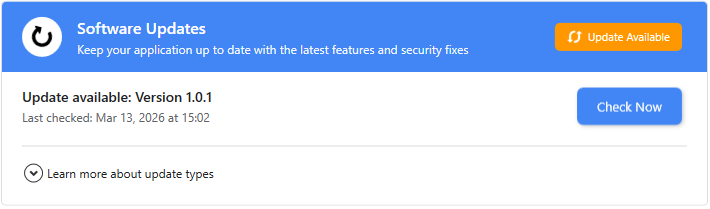
If an update is available, it is recommended to install it as soon as possible to benefit from the latest fixes and enhancements.
Dark Mode
Dark Mode allows you to switch the application interface to a darker theme instantly.

Choose the look that fits your workflow and environment best.
Real-Time Charts
Controls live monitoring for image CAPTCHA activity.

When enabled, CapSkip displays real-time charts showing incoming image CAPTCHA requests and the current processing queue. This helps you track workload and performance visually.
When disabled, charts are turned off to reduce CPU and RAM usage, which is recommended for VPS or high-load environments where maximum performance is required.
Logging & Debugging
Configure logging and debugging options to record API requests and save CAPTCHA images for troubleshooting and analysis.
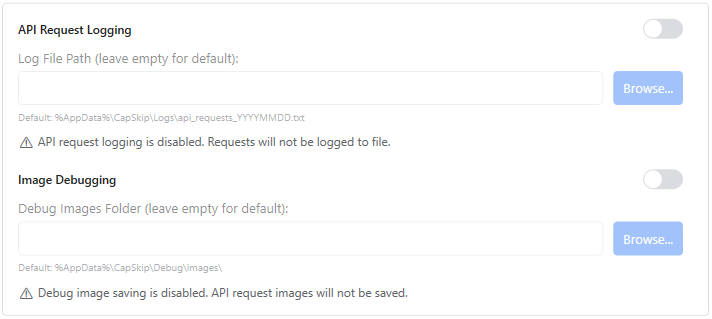
API Request Logging
API Request Logging allows you to record incoming API requests to a file for monitoring, debugging, or auditing purposes. When enabled, CapSkip will save request details to the specified log file path. If no custom path is provided, the default log directory will be used automatically.
This feature is useful for troubleshooting integration issues or analyzing request patterns. Disable it if logging is not required to reduce disk usage.
Image Debugging
Image Debugging allows you to save incoming CAPTCHA images for inspection and testing. When enabled, CapSkip will store received image CAPTCHA files in the specified folder. If the path is left empty, the default debug directory will be used.
This is especially helpful when testing new CAPTCHA types, analyzing incorrect results, or preparing images for model improvements.
Disable image debugging during normal operation to avoid unnecessary disk usage.
Debug & Troubleshooting
This section allows you to generate diagnostic files to help identify and resolve issues.
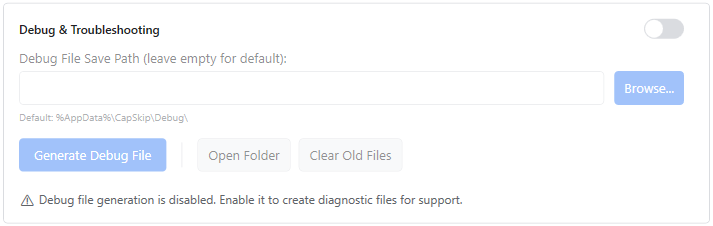
When enabled, CapSkip can create debug files containing technical information about system activity, configuration, and recent operations. These files can be shared with support for faster issue analysis.
Application Language
The Application Language setting allows you to choose your preferred interface language.

CapSkip supports multiple languages to ensure a comfortable experience for users worldwide. Choose the language that best fits your workflow.
Reset Settings
The Reset Settings option restores all configuration values to their default state.

Click Reset to Defaults to revert all customized settings, including processing options, proxy configuration, UI preferences, and other adjustments.
Use this option if you want to start fresh, resolve configuration conflicts, or quickly return CapSkip to its original setup.
Proxy Configuration
The Proxy Configuration panel allows you to manage the proxies used for reCAPTCHA and Cloudflare Turnstile solving.
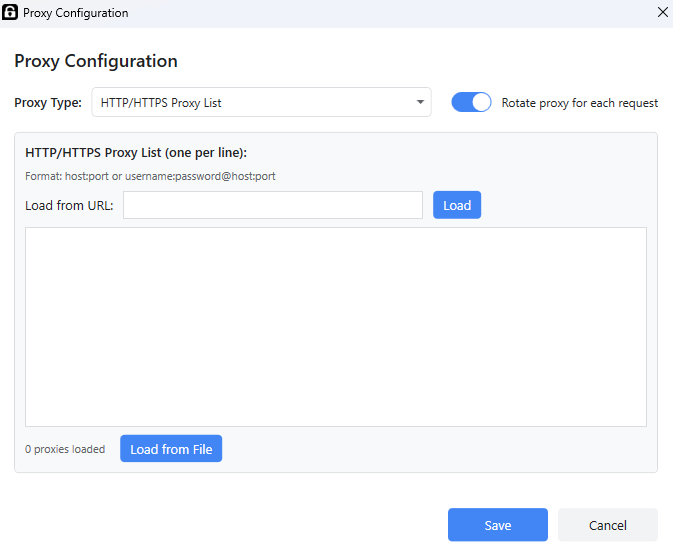
Proxies are required for reCAPTCHA and Turnstile. Image CAPTCHA solving does not require proxies.
Select the proxy type based on your setup:
No Proxy – Uses your local IP address. Works temporarily, but repeated requests will likely result in IP blocking.
Tor (SOCKS5) – Uses the local Tor service.
SOCKS5 Proxy List – For SOCKS-based proxy lists.
SOCKS5 with DNS (SOCKS5h) – Routes DNS resolution through the proxy.
HTTP/HTTPS Proxy List – Standard HTTP or HTTPS proxies.
Single Custom Proxy – Use one dedicated proxy.
Choose the type that matches your proxy provider.
Recommended:
For best performance when solving reCAPTCHA and Cloudflare Turnstile, use high-quality private proxies.
Private HTTP/HTTPS proxies
Private SOCKS5/SOCKS5h proxies
Residential or ISP proxies for higher success rates
Avoid using public or shared proxies, as they are often rate-limited, blacklisted, or unreliable.
Datacenter proxies may work, but some websites apply stricter filtering. Residential or ISP proxies generally provide better stability and lower block rates.
Proxy List Format
The supported format is displayed after selecting the proxy type.
Depending on your proxy provider, the format can be:
host:port
Use this format if you have whitelisted your own IP address in your proxy provider’s dashboard.username:password@host:port
Use this format if your proxy requires authentication with a username and password.
Make sure the format matches the requirements of your proxy service.
Adding Proxies
You can add proxies in three ways:
Paste proxies directly into the list
Load proxies from a URL
Load proxies from a file
After loading, the application will display the total number of proxies currently configured.
Rotate Proxy for Each Request
Enable this option to automatically rotate proxies for every new CAPTCHA request. This improves success rates and reduces the risk of IP-based rate limits.